
More project photos (2)

The problem
A folder sync desktop app with two-way sync and conflict detection is a utility that keeps two folders identical on the same computer or across two drives, copying changes in both directions instead of only one. Students constantly edit the same files in two places — a laptop folder and a backup drive, a project folder and a USB stick — and the copies drift apart until nobody knows which version is current. Copying is slow and error-prone: the newest file gets overwritten by an older one, a deleted file reappears from the stale copy, and two different edits to the same document collapse into one. This project solves that by comparing every file on SHA-256 hash, size and modification time, showing a sync plan before anything changes, and stopping at conflicts instead of guessing. The result is a demonstrable desktop utility with a real sync engine, a readable plan and log, and a conflict screen.
| App | How it syncs | What happens to conflicting edits |
|---|---|---|
| Folder sync desktop app (this project) | Two-way sync between two local folders | Shows both versions and asks the user to choose |
| Cloud-drive sync (Google Drive / OneDrive) | Two-way sync through the provider's servers | Keeps one version or creates an unnamed duplicate |
| Manual copy-paste | One-way copying by hand | The older file can silently overwrite the newer one |
| One-way backup scheduler | Copies in one direction on a schedule | Changes on the backup drive never come back |
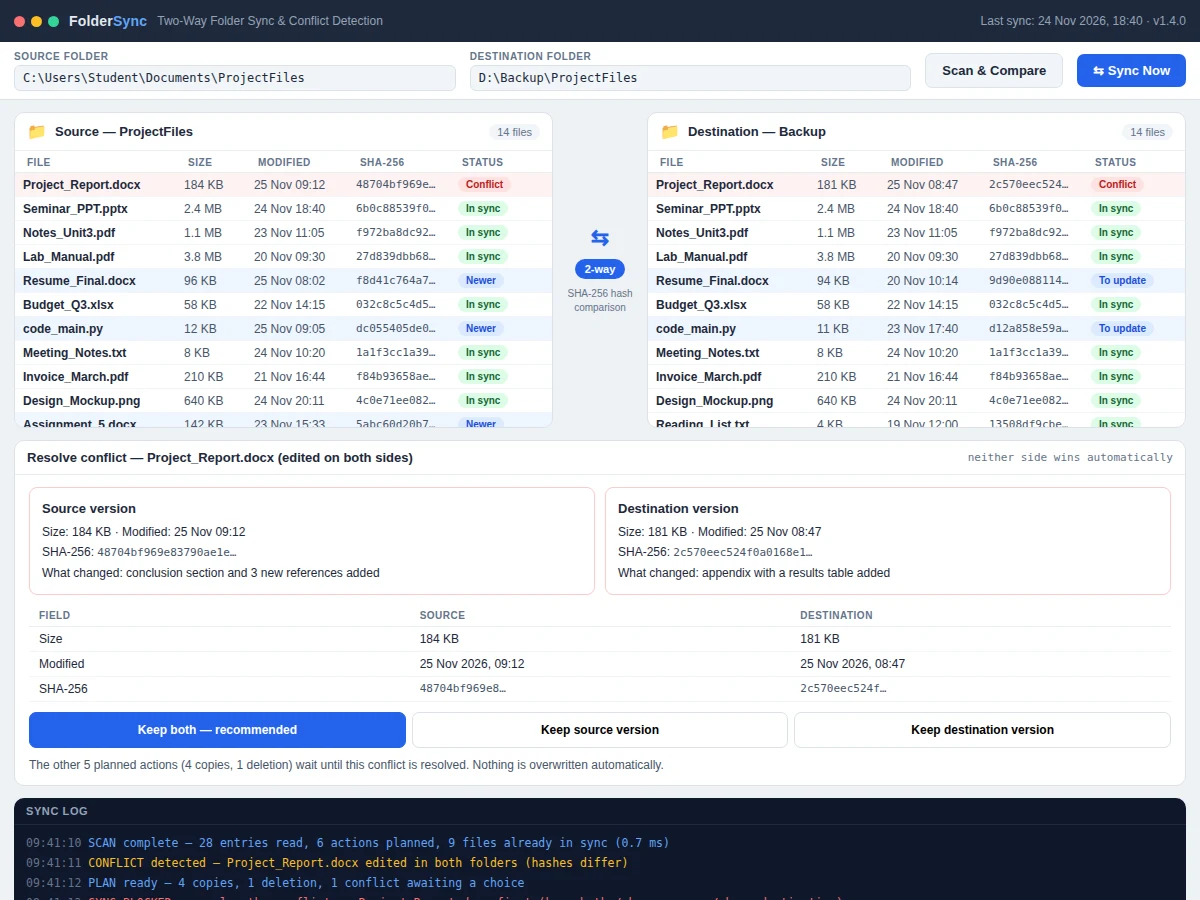
Source and destination folders with files matched by relative path.
Follow the working sequence
How it works
From scan to sync, the app works as a short loop: read, compare, plan, confirm, apply. The file watcher or a manual scan reads both folders and records each file's name, size, modification time and SHA-256 hash in a local SQLite database, so the next scan only re-hashes files whose size or time changed. The comparison step matches files by relative path and sorts them into four buckets — identical, newer on one side, missing on one side, and changed on both sides. The plan builder turns those buckets into a readable list of actions: copy this way, copy that way, delete with confirmation, or stop at a conflict. Nothing runs until the user confirms the plan, and the conflict screen forces a choice for every file edited on both sides. Applying the plan copies, deletes and renames files through Node.js file operations, updates the database, and writes each action to the timestamped log.
- The user picks a source folder and a destination folder, and the app reads both folder trees, recording every file's name, size and modification time.
- Any file whose size or modification time changed since the last scan is re-hashed with SHA-256, while unchanged files reuse the hash stored in the local SQLite database.
- Files are matched by relative path and compared on hash, size and time, then sorted into identical, newer on one side, missing on one side, or changed on both sides.
- The plan builder converts the differences into a readable list of actions — copy source to destination, copy destination to source, delete with confirmation, or conflict.
- Conflicts are shown side by side with size, modification time and hash for each version, and the user picks keep-both, keep-source or keep-destination.
- The user confirms the plan and the app applies it through Node.js file operations, copying, deleting and renaming files as listed.
- Every action is written to the timestamped sync log and the database is updated, so the next scan starts from the new state.
Tech stack:
- Electron · Node.js desktop runtime
- JavaScript · HTML · CSS interface
- Node.js crypto module · SHA-256 hashing
- chokidar file watcher
- SQLite · local sync-state database
- electron-store · settings and sync rules
- Node.js fs/promises · file operations
- Jest · unit tests for the sync engine
| Parameter | Value |
|---|---|
| Application type | Desktop folder-sync utility for Windows · macOS · Linux (design target) |
| Runtime | Electron with Node.js 20 LTS (design target) |
| Comparison method | SHA-256 hash (256-bit digest) · file size in bytes · modification time |
| Sync directions | Two-way · source to destination and destination to source |
| Seeded demo folders | 15 files across 2 folders in the demo build (measured count) |
| Sync-plan computation | Under 1 ms for the 15-file seeded folders in the demo build self-test (measured) |
| Conflict handling | Keep-both rename · keep source version · keep destination version |
| Metadata store | SQLite database · 1 row per tracked file (design target) |
| File watcher | chokidar · change events picked up within 1 second (design target) |
| Log retention | Last 500 sync actions retained in the log (design target) |
| File size limit | No built-in limit · bounded by available disk space (design target) |
Project features
The app's four strongest capabilities are its two-way sync engine, its SHA-256 hash comparison, its conflict detection with keep-both resolution, and its preview-before-you-sync plan. The sync engine copies changes in both directions, so a file edited on the backup drive comes back to the working folder just as reliably as the reverse, and deletions propagate only after confirmation. Every comparison uses the file's SHA-256 hash together with its size and modification time, so files that only look the same by name are never treated as identical, and unchanged files are skipped without being recopied. When the same file has changed on both sides, the app stops and shows both versions side by side — size, time and hash — and the user chooses keep-both, keep-source or keep-destination. The plan panel lists every copy, deletion and conflict before anything runs, and the log records each action with a timestamp.
- [Two-way sync engine] Changes flow in both directions between the two folders, so a file edited on the backup drive is copied back to the working folder, and a new file created on either side appears on the other after the next sync.
- [SHA-256 hash comparison] Every file is compared by its SHA-256 hash together with its size and modification time, so two files with the same name but different contents are never treated as identical, and unchanged files are skipped without being recopied.
- [Conflict detection with keep-both resolution] When the same file has changed on both sides since the last sync, the app flags a conflict and shows both versions side by side, with keep-both, keep-source and keep-destination choices, and nothing is overwritten until the user picks one.
- [Sync plan preview] Before anything runs, the plan panel lists every planned copy, deletion and conflict with its reason, so the user approves the whole sync knowing exactly what will change.
- [Deletion propagation with confirmation] A file deleted in one folder is marked for deletion in the other, but the deletion only runs after the user confirms it in the plan, so an accidental delete cannot wipe the backup silently.
- [File watcher with live updates] A chokidar file watcher notices new, changed and deleted files while the app is running and refreshes the comparison, so the plan stays current without a manual rescan.
- [Sync log and history] Every scan, copy, deletion and conflict decision is written to a timestamped log, and the last 500 sync actions are retained, giving the student a real record to show and discuss.
- [Sync rules and exclusions] Exclusion patterns for temporary and cache files, such as *.tmp, are configurable, so the sync skips files the student never wants copied (configurable feature).
What is included
- Complete Electron desktop app source code with the two-way sync engine, hash comparison and conflict resolution
- Working demo build with two seeded folders, a sync plan preview, a conflict screen and a sync log
- SQLite schema for the sync-state database and setup instructions
- Setup guide for Windows, macOS and Linux (design target)
- Project report PDF covering Electron, Node.js file operations, SHA-256 comparison and conflict handling
- PPT presentation for final review
- Viva Q&A preparation document (Electron, Node.js, hashing, SQLite, sync logic, conflict cases)
- Downloadable project abstract PDF
Limitations & prerequisites
- The base build syncs folders on the local machine or attached drives; it has no cloud storage or remote sync.
- Conflict detection compares file contents by hash; it cannot merge two edited versions of one document, so the user picks a version or keeps both.
- The base build syncs 1 folder pair (2 folders); syncing more pairs needs an optional extension.
- Hashing large files takes time proportional to file size, so a first scan of a multi-gigabyte folder is slower than later scans, which reuse stored hashes.
- The app must be running for the watcher to notice changes; edits made while it is closed are picked up on the next scan.
- Deleting a file on one side deletes it on the other after confirmation; there is no recycle-bin recovery in the base build.
- The demo build uses seeded sample folders; real folders need a first full scan before syncing.
Frequently Asked Questions
Is this project suitable for a final-year project?
Yes. This project suits B.E./B.Tech final-year work in Computer Engineering and Information Technology, because it combines a real desktop application, a file-comparison engine, a local database and a conflict-resolution workflow in one demonstrable build that syncs real folders and shows every decision it makes. The student can run the app on two seeded folders, change a file on either side, watch the plan update, and resolve a conflict on screen, then explain the hash comparison, the database and the Electron packaging from the code.
How is this different from a cloud drive like Google Drive?
A cloud drive syncs folders through the provider's servers and needs an account and an internet connection, while this app syncs two local folders directly on the computer, with no account, no upload and no third-party server involved. Its conflict handling is also explicit: instead of silently keeping one version or creating an unnamed duplicate, it shows both versions side by side and asks the user to choose. Cloud drives are the right tool for sharing files across devices; this project is the right demonstration of how sync itself works, which is why it suits a final-year build.
What happens when the same file is edited in both folders?
The app flags it as a conflict and does nothing to the file until the user chooses. Both versions are shown side by side with their size, modification time and SHA-256 hash, so the user can see exactly how they differ before deciding. Keep-both saves both versions with renamed copies, keep-source overwrites the destination copy, and keep-destination overwrites the source copy. No edit is ever silently overwritten, and the choice is written to the log.
What is the main technology used?
The app is built with Electron and Node.js, using the Node.js crypto module for SHA-256 hashing, chokidar for watching folder changes, and SQLite for the local sync-state database. The interface is HTML, CSS and JavaScript running inside the Electron window, so the same codebase covers the interface and the sync engine. Electron was chosen because it packages a desktop app from web technologies the student already knows, while Node.js gives direct access to the file system for reading, hashing, copying and deleting files.
Does it work without internet?
Yes, the app works fully offline, because both folders live on the local machine or on attached drives, and the hash comparison, the plan and the database all run locally with no data ever leaving the computer. An internet connection is not needed for any feature in the base build. An optional cloud-storage extension could be added later, but the base project is deliberately local, which also makes it easy to demonstrate in a college lab with no network access.
Can this project be customized?
Yes. Extra folder pairs, scheduled automatic sync, exclusion rules for temporary files, and a cloud-storage backup target can all be added, because the sync engine is split into small modules for scanning, comparing, planning and applying, and each module can change without touching the others. Each addition is scoped separately, so the base build stays exactly as listed above, and college-specific requirements such as a particular folder layout or a Linux package can be quoted on request. The interface can also be restyled or extended with a sync-history chart, and the conflict screen can gain a text-diff view for plain-text files.
Related built-to-order projects on this site: https://projectech.in/projects/automatic-file-backup-scheduler-desktop-app/ https://projectech.in/projects/desktop-file-search-tool-fulltext-content-indexing/ https://projectech.in/projects/encrypted-lan-chat-application-group-rooms-file-transfer-python/
Components & software requirements
- Electron · Node.js desktop runtime
- JavaScript · HTML · CSS interface
- Node.js crypto module · SHA-256 hashing
- chokidar file watcher
- SQLite · local sync-state database
- electron-store · settings and sync rules
- Node.js fs/promises · file operations
- Jest · unit tests for the sync engine
Delivery information
Built-to-order project. Delivery timeline is shared after order confirmation based on current queue.
Support terms
Complete documentation, setup guide, and viva preparation included. Support for setup and explanation provided.
Download free synopsis (PDF)
Enter your name and WhatsApp number — the synopsis PDF downloads immediately. We may send occasional project updates on WhatsApp; no spam.