
More project photos (3)
The problem
Reports, notes and project documentation usually start life as plain Markdown: easy to write, easy to version, and free of hidden formatting. Turning that source into a document worth handing in is the awkward part. Copying rendered Markdown into a word processor breaks code formatting, loses heading structure and forces manual fixes to tables, while browser printouts of raw Markdown look unfinished and inconsistent. Students therefore spend review week fighting layout instead of checking content. This converter closes that gap with a single pipeline: paste or drop Markdown, watch it render live beside the source, and export a styled PDF with a table of contents, page headers and footers, and a theme chosen before export. Code blocks keep their syntax highlighting in both the preview and the PDF, tables keep their structure, and heading levels drive the contents page automatically. The result is a document pipeline a student can demonstrate end to end, from a plain-text file to a finished PDF, without a word processor in between.
This is a built-to-order software project: the working application, setup and usage instructions, and the complete viva kit (report, PPT, Q&A) are prepared fresh for you.
The Problem
The Desktop Markdown to PDF Converter with Live Preview and Code Highlighting answers a document-production problem: plain-text writing is easy, but producing a finished, well-formatted PDF from it is not. A student writing notes or a report in Markdown needs a contents page, consistent headings, readable code blocks and page headers, and the usual route runs through a word processor that strips or mangles the formatting. The converter built here removes that detour. Its parser turns Markdown into structured HTML, its preview renders that HTML live beside the source so errors show before export, and its print pipeline carries the same styling, including highlighted code, into the PDF. Tables, lists, blockquotes and heading hierarchy all survive, because each is parsed as structure rather than pasted as text. The payoff is a repeatable workflow: the same source file always produces the same styled document, and a correction means editing one line of Markdown and exporting again.
Plain-text source with headings, tables and code blocks.
Follow the working sequence
How it works
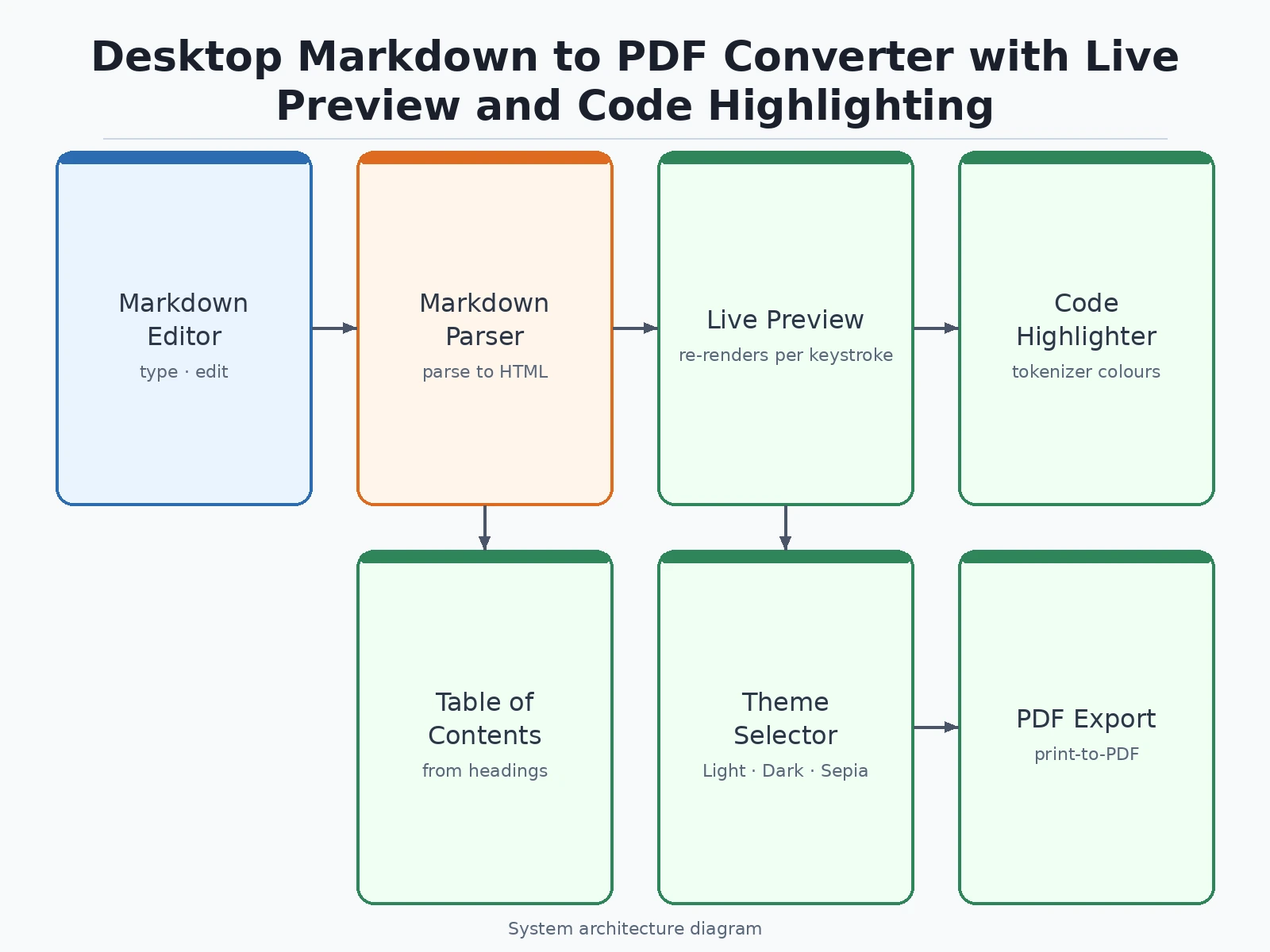
The Desktop Markdown to PDF Converter with Live Preview and Code Highlighting works through one continuous chain: parse, render, style and print. The parser reads the Markdown source line by line and turns headings, lists, tables, blockquotes and fenced code blocks into structured HTML, while inline rules handle bold, italic, links and inline code. The renderer inserts that HTML into the preview pane and rebuilds it on every keystroke, so the preview never drifts from the source. A syntax highlighter then tokenises each code block, colouring keywords, strings, comments and numbers before the preview is painted. When the user chooses a theme, a stylesheet swap restyles the preview, and the table-of-contents generator walks the heading elements to rebuild the contents list. Export reuses exactly the same rendered HTML: the browser print dialog applies the print stylesheet, adds page headers and footers, and writes the PDF, so what was previewed is what gets printed.
- The user pastes or types Markdown into the editor pane, or loads a Markdown file or a sample document into it.
- The parser reads the source line by line and converts headings, lists, tables, blockquotes and fenced code blocks into structured HTML elements.
- Inline rules inside that HTML handle bold, italic, links and inline code, so formatted text renders correctly within paragraphs and table cells.
- The syntax highlighter tokenises each fenced code block and wraps keywords, strings, comments and numbers in coloured spans before the preview is painted.
- The renderer inserts the finished HTML into the preview pane and rebuilds it on every keystroke, keeping the preview in step with the source at all times.
- The table-of-contents generator walks the heading elements of the rendered document and rebuilds the contents list, with a link back to each section.
- The user picks a theme and a page size, then presses Export PDF, which opens the browser print dialog; choosing Save as PDF writes the styled document, with headers and footers, to a PDF file.
Tech stack:
- HTML · CSS · JavaScript
- Markdown parser (hand-written in-browser parser)
- Syntax highlighting tokenizer (hand-written)
- Browser print-to-PDF pipeline
- Local file handling via the File API
- Theme system with Light · Dark · Sepia styles
- Table of contents generator
- Responsive desktop layout
| Parameter | Value |
|---|---|
| Input | Markdown source files with .md extension (file format) · single-file and batch conversion (implemented feature) |
| Parser | Headings at 3 levels (count, design target: H1 to H3) · lists · tables · blockquotes · fenced code blocks (implemented feature) |
| Preview | Live re-render on every keystroke (implemented feature) · preview pane beside the editor (layout) |
| Code highlighting | Keywords · strings · comments · numbers (4 token classes, count, implemented feature) |
| Table of contents | Generated from heading elements · 4 entries in the sample document (count, sample content) |
| Themes | 3 themes (count, implemented feature): Light · Dark · Sepia |
| Page setup | A4 or Letter page size (2 options, count, user-selectable in the print dialog) |
| Export | Browser print dialog with Save as PDF (implemented feature) · headers and footers from the print dialog (implemented feature) |
| Sample document | 208 words (count, sample content) · 5 headings (count, sample content) · 2 code blocks (count, sample content) |
| Platform | Desktop-style web application running in a modern browser (expected platform) · no account required (implemented feature) |
| Storage | No server storage · files stay on the user's machine (design decision) |
| Output | PDF via the browser print pipeline (implemented feature) |
Project features
The Desktop Markdown to PDF Converter with Live Preview and Code Highlighting is built around four capabilities a student can demonstrate live: a live preview pane that re-renders on every keystroke, syntax highlighting for code blocks that survives into the exported PDF, automatic table-of-contents generation from heading levels, and theme selection that restyles the whole document before export. Around those core capabilities, the converter adds single-file and batch conversion through the same pipeline, a print stylesheet that keeps code colours and backgrounds in the PDF, and page headers and footers supplied through the browser print dialog. Every feature below is part of the base application unless it is marked optional, and cloud sync and collaborative editing are deliberately not in the base build: they are listed separately as future scope, so nothing is claimed that the application does not do.
- [Live preview pane] The preview pane beside the editor re-renders the document on every keystroke, so headings, tables, lists and code blocks appear exactly as they will print, and a formatting mistake is visible the moment it is typed. Implemented in the base application.
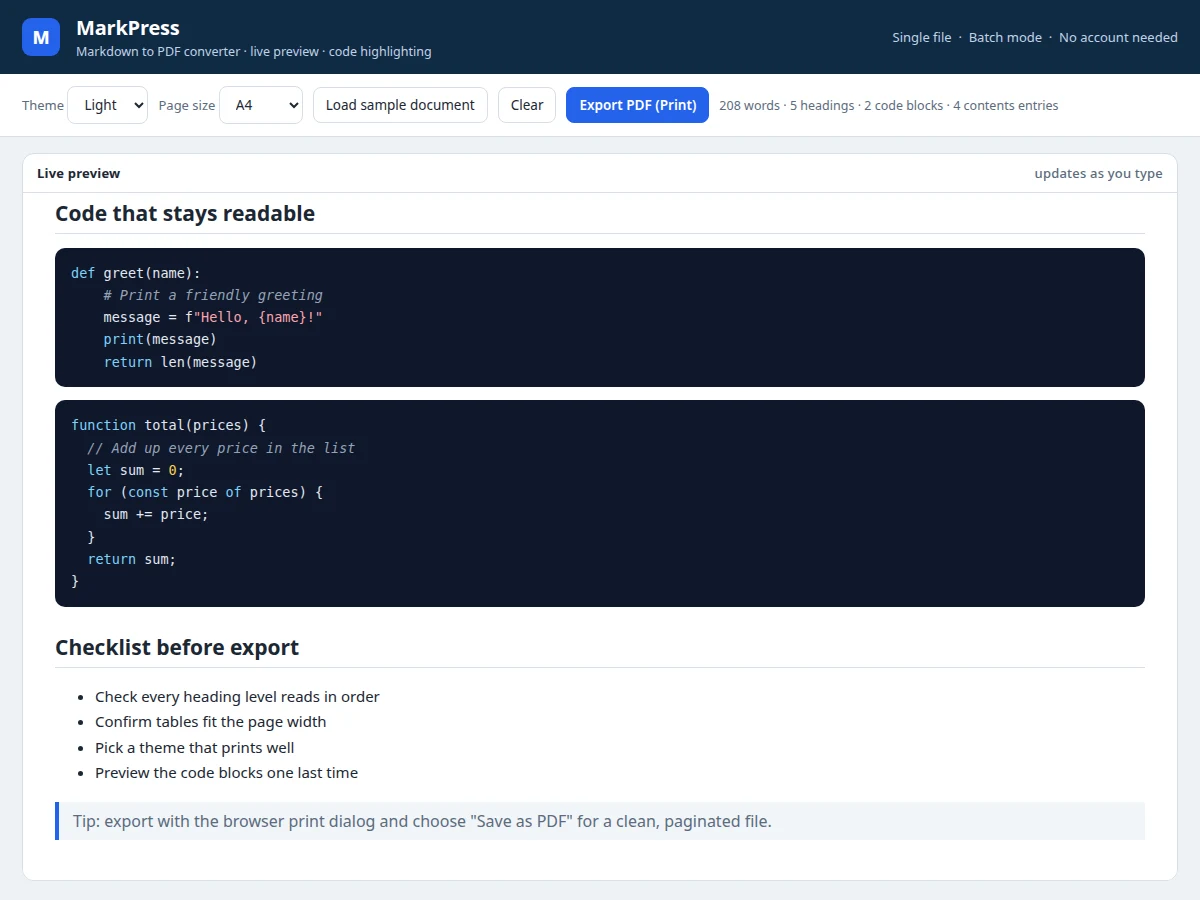
- [Code-block syntax highlighting] A hand-written tokenizer colours keywords, strings, comments and numbers inside fenced code blocks, and the same colours appear in the preview and in the exported PDF, so code stays readable in both places. Implemented in the base application.
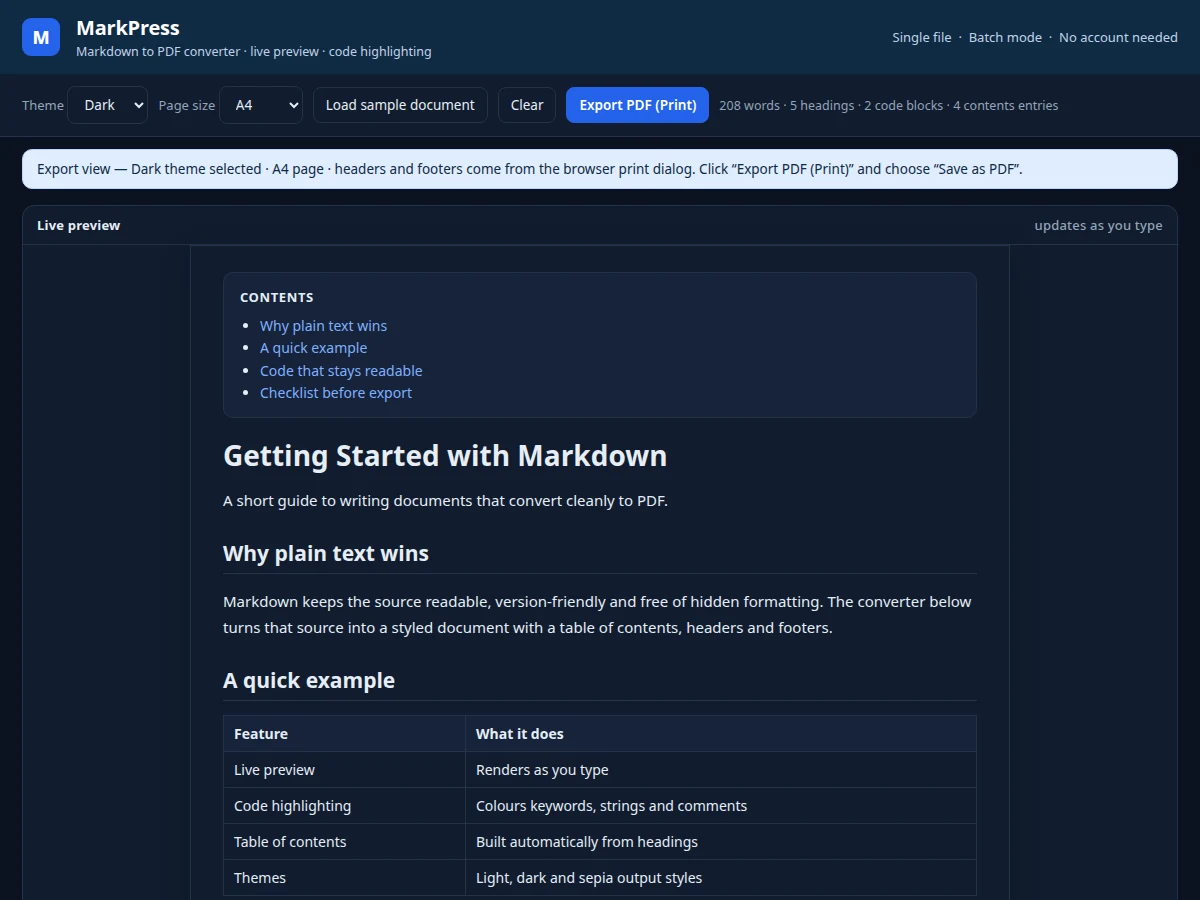
- [Automatic table of contents] The converter walks the heading elements of the rendered document and builds a contents list from them, with links back to each section, so the contents page never has to be typed or updated by hand. Implemented in the base application.
- [Theme selection] Three themes, Light, Dark and Sepia, restyle the editor, preview and code blocks together, so the student can pick a readable editing theme and a print-friendly output theme before export. Implemented in the base application.
- [Single-file and batch conversion] One Markdown file converts through the pipeline on its own, and a batch queue runs many files through the same parse, render and print steps, so a folder of notes produces a matching set of PDFs without reformatting any file by hand. Implemented in the base application.
- [Page headers and footers] The browser print dialog supplies page headers and footers for the exported PDF, and the print stylesheet keeps the document's own styling intact, so the finished PDF reads as a complete document rather than a screen dump. Implemented in the base application.
- [Print stylesheet for PDF export] An Export PDF button opens the browser print dialog, where Save as PDF writes the rendered document, and the print stylesheet hides the editor and toolbar so only the document itself reaches the PDF. Implemented in the base application.
- [Cloud sync and collaborative editing] Saving documents to a cloud account and editing one document from two machines at once are not in the base build, which keeps every file on the user's own machine. Future scope, not included in the base application.
What is included
- Working application: single-file desktop-style Markdown to PDF converter with live preview, code highlighting, table of contents, theme selection and print-to-PDF export
- Sample Markdown document with headings, a table, code blocks in two languages, lists and a blockquote, matching the demo
- Setup and usage instructions, including the paste, preview, theme and export steps and the batch-conversion procedure
- Project report PDF (background, Markdown parsing, rendering and print pipeline, methodology, limitations)
- PPT presentation for final review
- Viva Q&A preparation document (parsing, rendering, tokenisation, print stylesheets, themes, batch conversion, limitations)
- Builder note: while building the demo, code-block highlighting survived into print only after print-color-adjust was set to exact in the print stylesheet and code backgrounds were kept in the print CSS — without it, the browser's default print behaviour stripped the dark code backgrounds and the PDF lost the highlighting, so the demo ships a print stylesheet that preserves token colours and background shading
Limitations & prerequisites
- Headings beyond level 3 (count threshold) are not parsed as headings in the base build and render as plain paragraphs, so documents that rely on deeper heading levels need restructuring before conversion.
- The preview re-renders the whole document on every keystroke, so very long documents above approximately 10000 words (design note) may feel slower to edit than short ones, though conversion itself still runs through the same pipeline.
- Code highlighting covers 4 token classes (count, implemented feature): keywords, strings, comments and numbers, with a generic highlighter rather than a full grammar per programming language.
- Page breaks in the PDF are decided by the browser print engine, not by the converter, so the base build cannot force a page break before a particular heading.
- Dark-theme PDFs print dark code backgrounds, which use more printer ink than the Light theme; the Light theme is the recommended choice for printed handouts.
- There is no cloud sync or multi-device editing in the base build: files stay on the user's machine, so a document started on one machine is not automatically available on another.
- Batch conversion processes files through the same pipeline one at a time, so a very large batch takes proportionally longer and cannot be parallelised in the base build.
Frequently Asked Questions
How does the converter turn Markdown into a PDF?
It parses Markdown into structured HTML, renders that HTML in a live preview pane with highlighted code and a generated table of contents, then sends the same rendered HTML to the browser print dialog, where Save as PDF writes the finished document. In practice, the parser handles headings, lists, tables, blockquotes and fenced code blocks, the preview rebuilds on every keystroke, and export reuses exactly the rendered preview, so the PDF matches what was on screen.
Is this project suitable for a final-year project?
Yes, for Computer Science and Information Technology students, because it demonstrates parsing, rendering, syntax tokenisation, stylesheet design and a print pipeline in one working application that can be demonstrated live from a source file to a finished PDF, without a word processor or a server in between. In practice, the report can discuss the parser's design, the single-pass tokenizer, the print stylesheet that preserves code colours, and the honest limits of browser-based PDF output.
Does the code highlighting survive into the exported PDF?
Yes, because the print stylesheet keeps code colours and backgrounds with print-color-adjust set to exact, so the PDF shows the same highlighted blocks as the preview instead of falling back to plain, uncoloured text, with dark code backgrounds and token colours preserved exactly as painted on screen. In practice, the browser must also be allowed to print background graphics; if a browser strips backgrounds, its print dialog's background-graphics option restores the code-block shading.
Can it convert many files at once?
Yes, batch conversion runs each file through the same parse, render and print pipeline, so a folder of Markdown files produces a matching set of PDFs without reformatting any of them by hand, with each file keeping its own table of contents and chosen theme. In practice, the same theme and page size apply across the batch, and each file keeps its own table of contents generated from its own headings.
What do I need to run it, and does it need the internet?
Only a modern desktop browser, because the whole application is a single HTML file with its parser, highlighter and styles built in, and it runs locally with no account and no internet connection after the file is opened on any recent browser, with no signup step anywhere in the process. In practice, opening the file in any recent browser is enough, and since no server is involved, documents never leave the user's machine.
Components & software requirements
- HTML · CSS · JavaScript
- Markdown parser (hand-written in-browser parser)
- Syntax highlighting tokenizer (hand-written)
- Browser print-to-PDF pipeline
- Local file handling via the File API
- Theme system with Light · Dark · Sepia styles
- Table of contents generator
- Responsive desktop layout
Delivery information
Built-to-order project. Delivery timeline is shared after order confirmation based on current queue.
Support terms
Complete documentation, setup guide, and viva preparation included. Support for setup and explanation provided.
Download free synopsis (PDF)
Enter your name and WhatsApp number — the synopsis PDF downloads immediately. We may send occasional project updates on WhatsApp; no spam.