
More project photos (3)

The problem
Desktop Code Editor with File Tabs and Themes is a desktop code editor that opens several source files in tabs, edits them with syntax highlighting, and switches between light and dark themes while the work saves itself. The problem it addresses is ordinary and persistent: students write code in plain text editors or in heavyweight tools that either offer no structure at all or demand setup, accounts and configuration before a single line is written. A simple editor that opens fast, keeps several files visible in tabs, colours keywords, strings and comments, counts words and characters, and never loses work to a forgotten save is genuinely useful through a whole semester of lab work and project development. This project builds exactly that editor, with a working demo that runs in a browser and a documented Electron wrapper path that packages the same code as a desktop app for Windows, macOS and Linux.
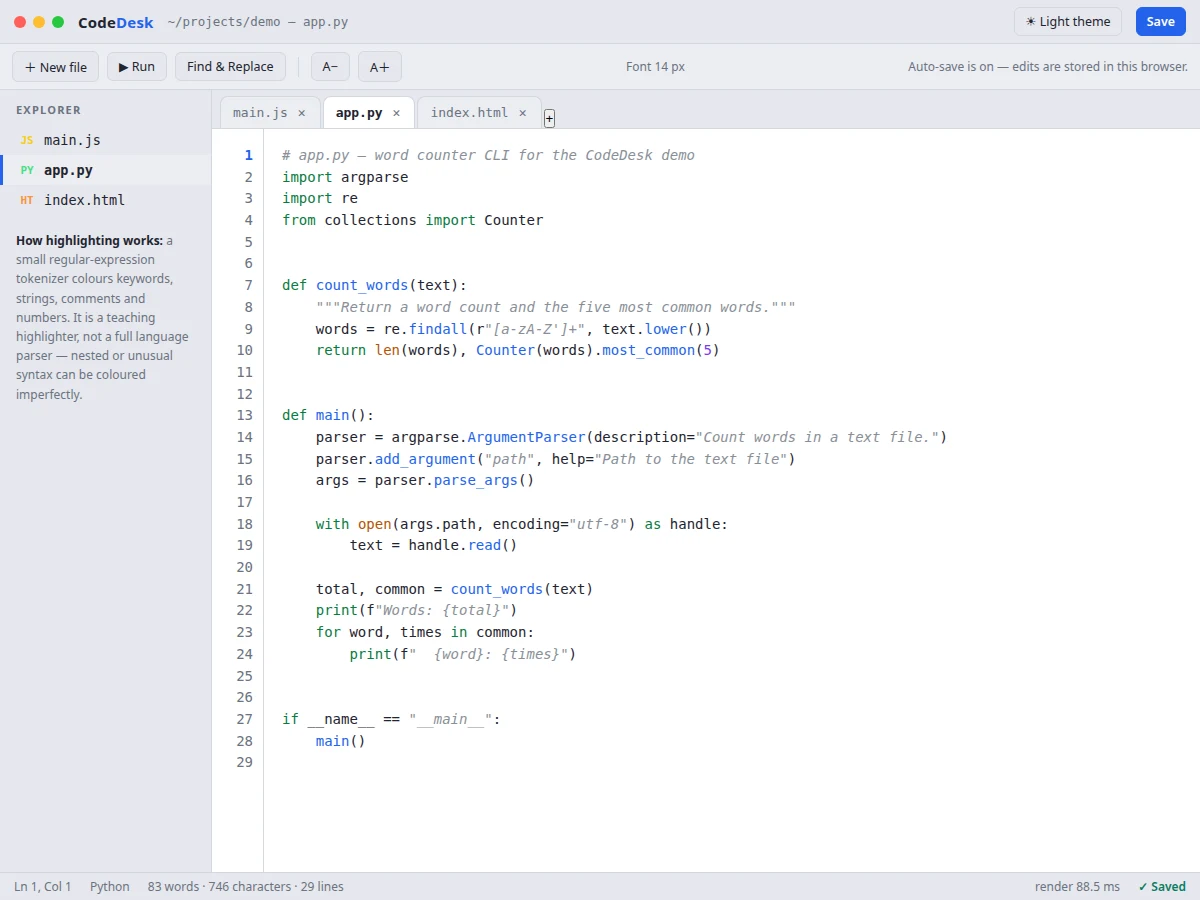
Opens main.js, app.py or index.html from the sidebar into a tab.
Follow the working sequence
How it works
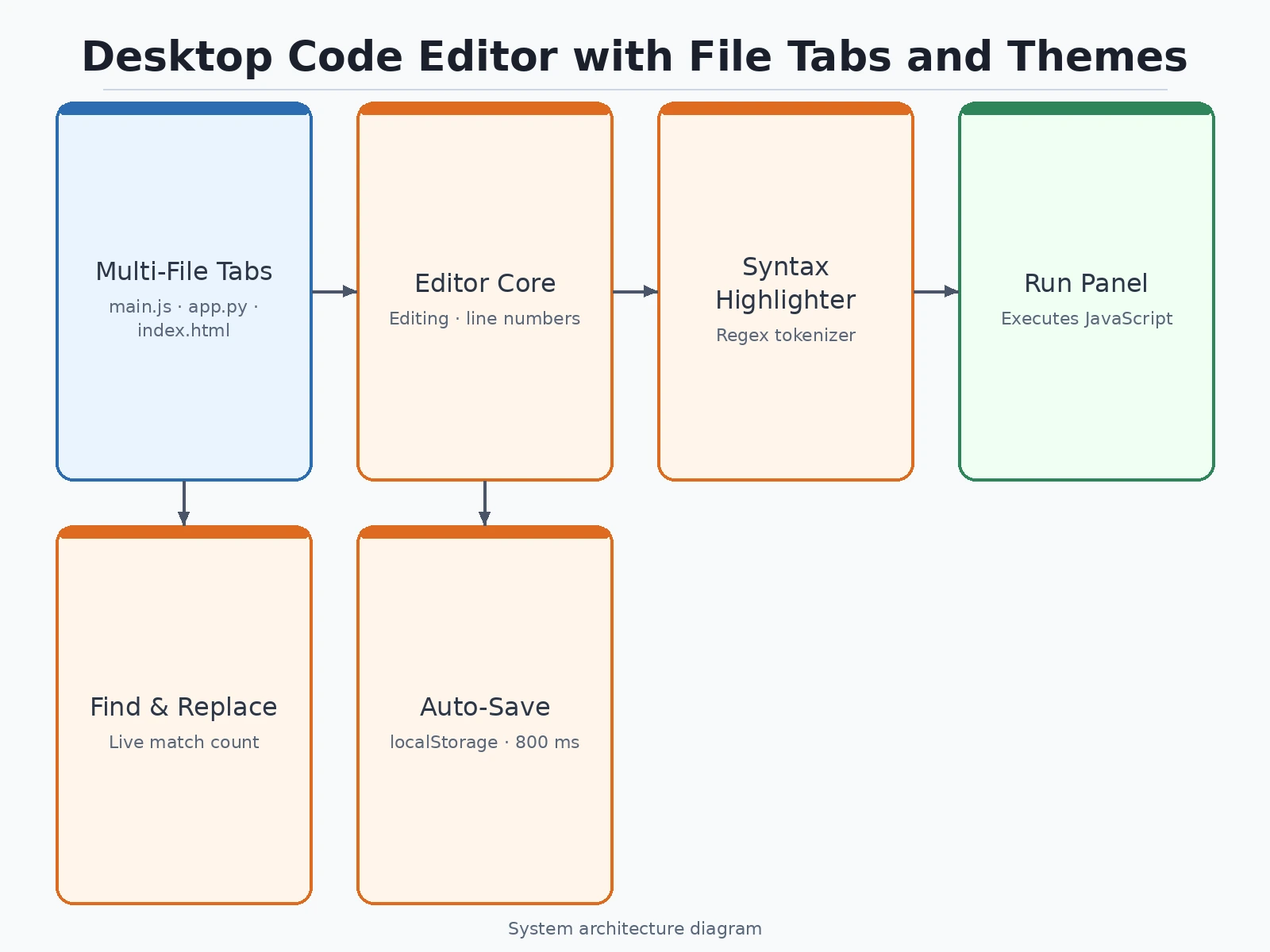
Opening a file from the Explorer loads its text into the editor, creates a tab for it, and splits the text into lines for the numbered gutter. A regular-expression tokenizer then scans the text for keywords, strings, comments, numbers and function names, and wraps each match in a coloured span that the editor displays behind a transparent typing area, so the caret and selection behave like a normal text field. Typing updates the plain-text model, re-highlights the file, recounts words and characters, and restarts the auto-save timer; after 800 ms without a keystroke the text is written to localStorage and the status bar shows the saved time. Find and replace scans the open file for the search term, marks every match, and replaces the selected match or all matches on request. The Run button executes the open JavaScript file and captures its console output into the panel below the editor.
- The student opens a file from the Explorer sidebar; the file's text loads into the editor and a tab appears for it.
- The editor splits the text into lines and renders the numbered gutter, highlighting the line the cursor sits on.
- The regular-expression tokenizer scans the text and colours keywords, strings, comments, numbers and function names for the file's language.
- Typing edits the plain-text model; the highlight, the line numbers and the word and character counts update on every keystroke.
- After 800 ms without a keystroke, auto-save writes the file to localStorage and the status bar shows the saved time.
- Find and replace scans the open file, highlights every match with a live count, and replaces one match or all matches on request.
- Pressing Run on a JavaScript file executes it and shows the captured console output in the panel below the editor.
- Switching tabs or closing the browser loses nothing: saved files reload from localStorage, and the theme and font-size choices are remembered too.
Tech stack:
- HTML · CSS · JavaScript
- Electron (desktop wrapper)
- Node.js (Electron runtime)
- Chromium (Electron renderer)
- Web Storage API · localStorage
- Regular-expression tokenizer
- Git
Requirements
Software requirements:
- A modern desktop browser to run the demo (Chrome, Edge or Firefox, current versions)
- Node.js and npm for the Electron wrapper build
- Electron, installed through npm per the wrapper guide
- Any plain text editor for the student's own edits
- Git for version control
This is a pure software project: no hardware components are needed.
| Parameter | Value |
|---|---|
| Editor core | Single-file HTML, CSS and JavaScript demo app (working prototype of the desktop build) |
| Languages highlighted | JavaScript, Python and HTML — 3 languages |
| Highlighting method | Regular-expression tokenizer, not a full language parser |
| Sample files | main.js (32 lines, Measured), app.py (29 lines, Measured), index.html (27 lines, Measured) — 88 lines in total (Measured) |
| Highlight render | 0.7–0.8 ms (Measured, 32-line file, headless Chrome on the build machine) |
| Auto-save delay | 800 ms (Design target) after the last keystroke |
| Font size | 12–20 px (Design target), adjustable in 1 px steps |
| Find and replace | Case-insensitive search of the open file, replace one or replace all |
| Persistence | Browser localStorage, survives reload (per MDN Web Storage API) |
| Desktop wrapper | Electron packages the same code for Windows, macOS and Linux (per Electron docs) |
| Run support | JavaScript files run in the demo with captured console output |
| Word and character count | Live counts in the status bar, updated on every keystroke |
Project features
The Desktop Code Editor with File Tabs and Themes is built around four capabilities that a student uses in every session: multi-file tabs that keep JavaScript, Python and HTML open side by side; syntax highlighting for those three languages from a small regular-expression tokenizer; automatic saving that writes every edit to browser storage without a save command; and find and replace that searches the open file with a live match count. Around those four sit light and dark themes, line numbers with live word and character counts, adjustable font size, and a run panel that executes JavaScript files and shows the console output. Every capability listed below is implemented in the working demo, and the demo's own sample files — a 32-line JavaScript task list, a 29-line Python word counter and a 27-line HTML page, 88 lines in total — are the proof that each one works.
- [Multi-file tabs] Three sample files open in tabs — main.js, app.py and index.html — and switching tabs keeps each file's text, cursor position and highlighting intact. New files can be created from the toolbar and closed from the tab bar.
- [Syntax highlighting for three languages] A regular-expression tokenizer colours keywords, strings, comments, numbers and function names in JavaScript, Python and HTML. The method is stated honestly: it is a teaching highlighter, not a full language parser.
- [Light and dark themes] One click switches the whole editor — sidebar, tabs, gutter and status bar — between a dark theme for late-night work and a light theme for bright rooms. The choice is remembered between sessions.
- [Auto-save with a visible saved indicator] Every edit is written to the browser's localStorage 800 ms after the last keystroke, and the status bar shows a Saving indicator followed by a Saved time. Work survives a page reload.
- [Find and replace] A find bar searches the open file case-insensitively, highlights every match, shows a live match count, and jumps between matches. Replace changes one match; Replace all changes every match in the file.
- [Line numbers with live word and character counts] A gutter numbers every line and highlights the current line, while the status bar shows live word, character and line counts that update on every keystroke.
- [Font-size control and a JavaScript run panel] Font size adjusts from 12 px to 20 px in 1 px steps. The Run button executes the open JavaScript file and shows its console output in a panel below the editor.
What is included
- Complete editor source code (single-file HTML, CSS and JavaScript demo)
- Electron wrapper guide with starter main-process files for Windows, macOS and Linux packaging
- 3 sample files with documented highlighting behaviour (main.js, app.py, index.html)
- Project report PDF (background, editor design, tokenizer design, methodology, outcomes)
- PPT presentation for final review
- Viva Q&A preparation document (tokenizer vs parser, Electron architecture, auto-save design, localStorage limits)
Limitations & prerequisites
- Highlighting is a regular-expression tokenizer, not a full language parser — nested template literals, unusual string escapes and multi-line constructs can be coloured imperfectly.
- Only 3 languages are highlighted in the base build (JavaScript, Python and HTML); other languages need new tokenizer rules.
- Auto-save in the demo writes to browser localStorage (approximately 5 MB per origin, per Web Storage guidance) — it is not a file on disk until the Electron wrapper's file saving is used.
- Run executes JavaScript only; Python and HTML files are edited and highlighted but not executed in the demo.
- Find and replace searches the open file only, not all open tabs at once.
- The demo has no user accounts, cloud sync or collaboration — single-user desktop use only.
- Responsiveness on very large files is untested: the 32-line sample re-highlights in 0.7–0.8 ms (Measured), but files of several thousand lines were not measured.
Timeline
- Week 1 (Expected): editor core, tab system and file explorer; first highlighting pass for JavaScript.
- Week 2 (Expected): Python and HTML tokenizers, light and dark themes, font-size control.
- Week 3 (Expected): auto-save, find and replace, word and character counts, JavaScript run panel.
- Week 4 (Expected): Electron wrapper packaging, final testing, report writing, PPT and viva preparation.
Support
- WhatsApp guidance during the build for demo setup, tokenizer questions and Electron packaging.
- Setup instructions cover running the demo in a browser and packaging the desktop app.
- Documentation explains the tokenizer design, the auto-save mechanism and every limitation for viva preparation.
Frequently Asked Questions
Is this project suitable for a final-year project?
Yes — for Computer Science and Information Technology students, because it demonstrates editor design, text processing with regular expressions, desktop packaging with Electron, and persistent storage with the Web Storage API, all in one build that a student can open, run and explain in a review without hiding behind a framework. The report and viva kit cover the tokenizer design, the Electron architecture and the auto-save mechanism in detail.
How does the syntax highlighting actually work?
A small regular-expression tokenizer scans the file text for keywords, strings, comments, numbers and function names, then wraps each match in a coloured span that the editor displays behind a transparent typing area, so typing feels like a normal text field. The tokenizer is deliberately simple and honest: it is a teaching highlighter, not a full language parser, so nested template literals or unusual string escapes can be coloured imperfectly, and that limitation is documented on the page and in the report.
Does it really save my work automatically?
Every edit is written to the browser's localStorage 800 ms after the last keystroke, and the status bar shows a Saving indicator followed by a Saved time, so closing the tab or reloading the page loses nothing at all in the demo. In the demo the storage is the browser's own store; the Electron wrapper path documents how the same code saves to real files on disk in the packaged desktop app.
Can code be run inside the editor?
JavaScript files can be run: the Run button executes the open JavaScript file and shows its captured console output in a panel below the editor, and the sample file prints its open, done and total task counts there for the student to inspect. Python and HTML files are edited and highlighted but not executed in the demo; running them is listed as a future extension in the report.
How is this different from a photo editor or a video editor?
This editor works on source-code text, not on photographs or video frames: a photo editor changes pixels and a video editor cuts frames, while this project edits plain-text code with tabs, highlighting, word counts and find and replace in three languages. The three tools share the word editor but solve unrelated problems, and the demo's sample files are code files — JavaScript, Python and HTML — not images or clips.
Can the editor be customized?
New languages can be added by writing new tokenizer rules, the Electron wrapper can gain native file dialogs, menus and installers, and extra panels such as a file search or a minimap can be built on request from the project team. Customizations are scoped separately from the base build, and the report lists which additions are straightforward and which need new design work.
Components & software requirements
- HTML · CSS · JavaScript
- Electron (desktop wrapper)
- Node.js (Electron runtime)
- Chromium (Electron renderer)
- Web Storage API · localStorage
- Regular-expression tokenizer
- Git
Requirements
Software requirements:
- A modern desktop browser to run the demo (Chrome, Edge or Firefox, current versions)
- Node.js and npm for the Electron wrapper build
- Electron, installed through npm per the wrapper guide
- Any plain text editor for the student's own edits
- Git for version control
This is a pure software project: no hardware components are needed.
Delivery information
Built-to-order project. Delivery timeline is shared after order confirmation based on current queue.
Support terms
Complete documentation, setup guide, and viva preparation included. Support for setup and explanation provided.
Download free synopsis (PDF)
Enter your name and WhatsApp number — the synopsis PDF downloads immediately. We may send occasional project updates on WhatsApp; no spam.