
More project photos (3)
The problem
System Startup Manager is a desktop app that finds every program set to launch when a computer starts, measures how much boot time each entry costs, and lets the user delay or disable the entries that are not needed immediately. Most slow boots are not caused by failing hardware: they are caused by a long queue of chat apps, cloud sync tools, game launchers, update checkers and helper utilities that all compete for processor time, disk reads and network access in the same few seconds after login. Because each program was installed at a different time, nobody ever sees the whole queue in one place, so the same heavy entries keep slowing every boot. System Startup Manager answers this by showing the full queue ranked by cost, locking essential security software so it cannot be switched off by mistake, and moving non-essential entries to a delay timer so the desktop becomes usable sooner without uninstalling anything.
The concept is deliberately conservative: nothing is deleted and nothing is uninstalled. Delaying an entry only changes when it starts, disabling one only stops it from starting on its own, and every change is recorded with its previous state so it can be undone exactly. That makes the app safe to demonstrate on a real machine, where a careless startup cleaner could otherwise break security software or a driver helper.
Opens the dashboard to review startup entries.
Follow the working sequence
How it works
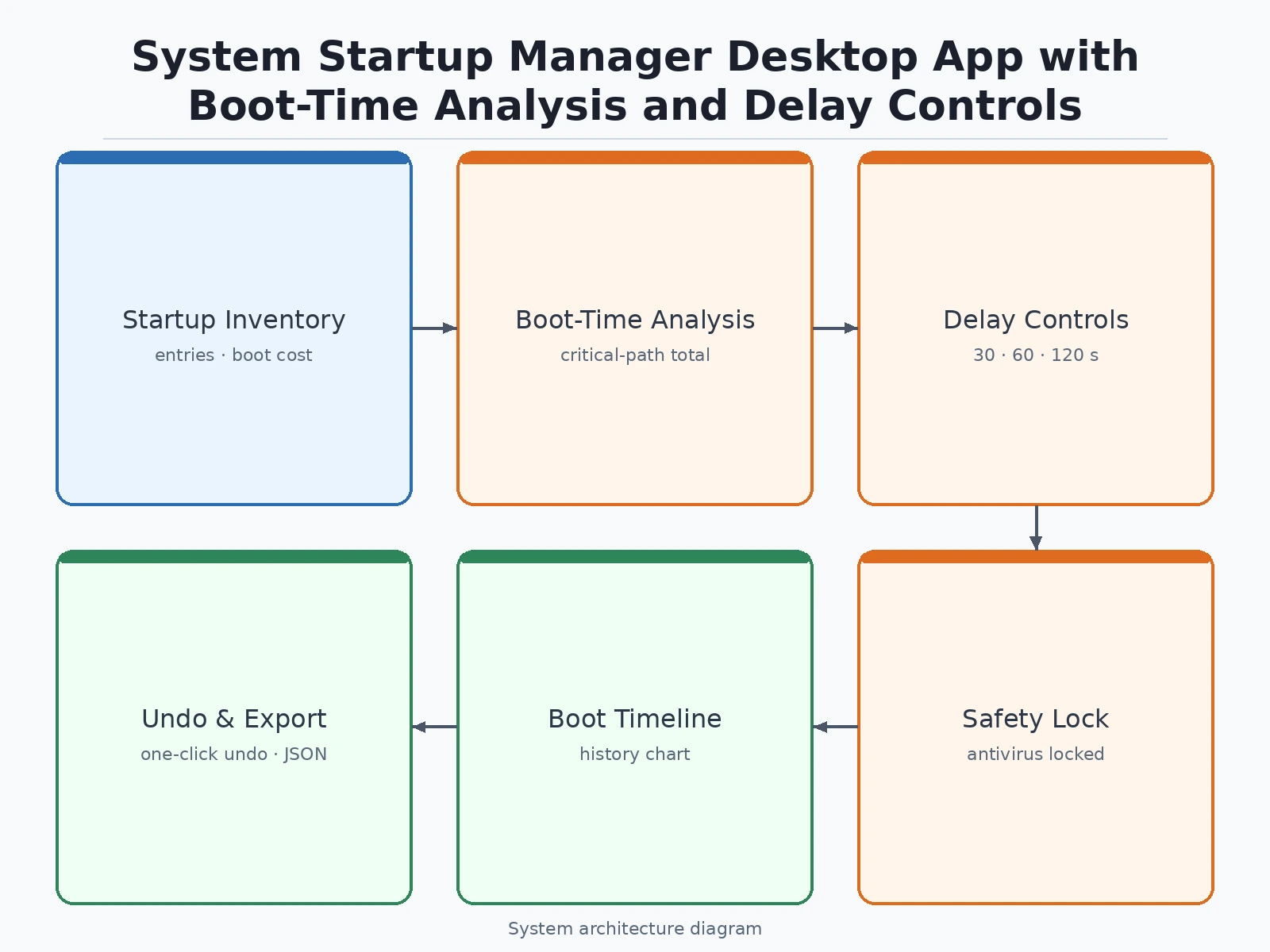
System Startup Manager works by scanning, measuring, deciding and then verifying, in that order. It first scans the Windows startup locations — the Registry Run keys, the Startup folders and scheduled tasks set to run at logon — and builds one inventory of every entry. It then measures or imports a per-entry boot-time cost and ranks the queue from heaviest to lightest, flagging entries its rules classify as essential. The user reviews the ranked list and chooses, per entry, to keep it, delay it by a timer, or disable it, while essential entries stay locked. The app writes the change, records the previous state and creates a restore point, so the next boot follows the new plan and the timeline chart shows exactly how many seconds the critical path changed.
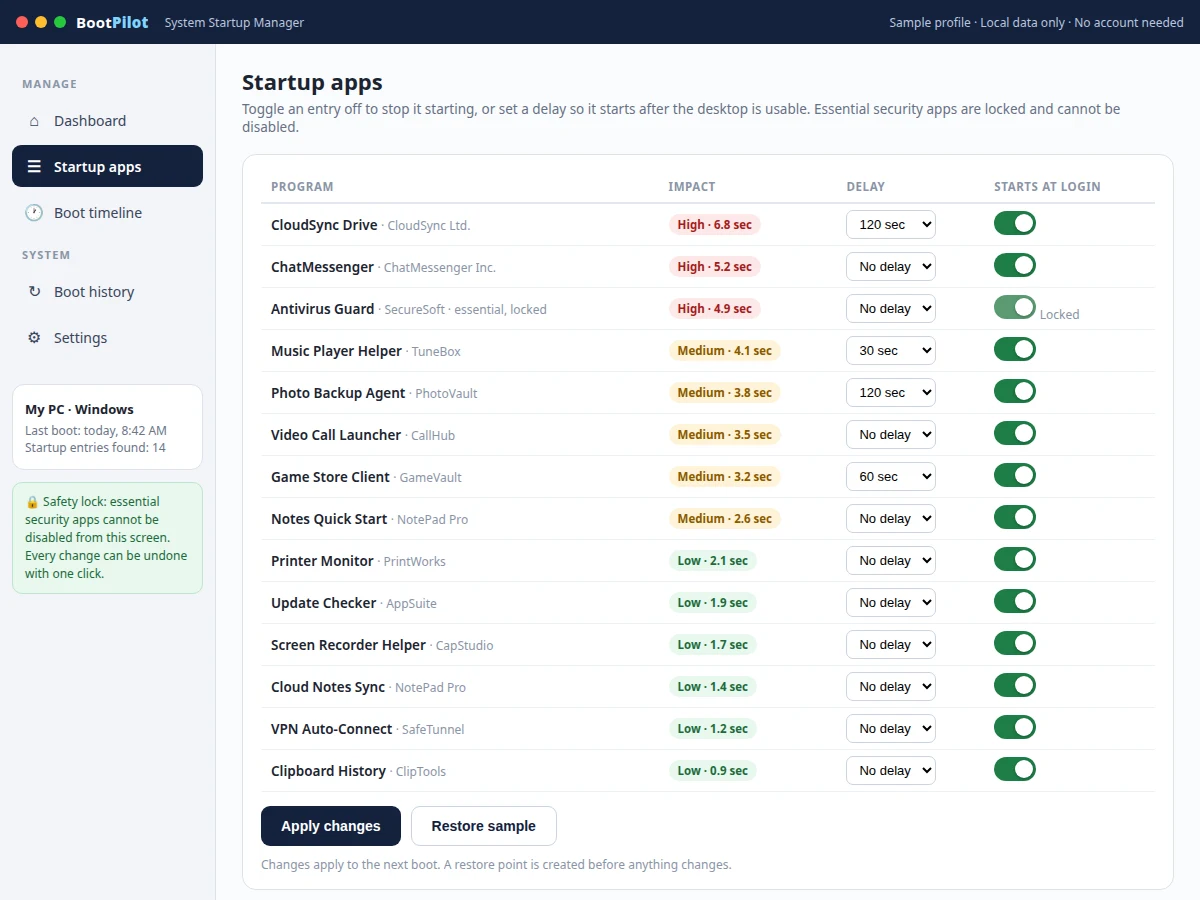
- The app scans the Registry Run keys, the Startup folders and logon scheduled tasks, and merges them into one deduplicated inventory with a publisher name for each entry.
- Each entry is given a boot-time cost in seconds and a High, Medium or Low impact badge, and the queue is ranked heaviest first.
- Entries matching the essential rules, such as antivirus software and system services, are marked locked so their switches cannot be turned off.
- The user reviews the ranked list and, per entry, keeps it, sets a delay of 30 seconds, 60 seconds or 120 seconds, or disables it.
- Before anything changes, the app records every previous state and creates a restore point, so the whole plan can be undone.
- The app writes the new startup configuration and updates the dashboard totals, showing the new critical-path figure against the old one.
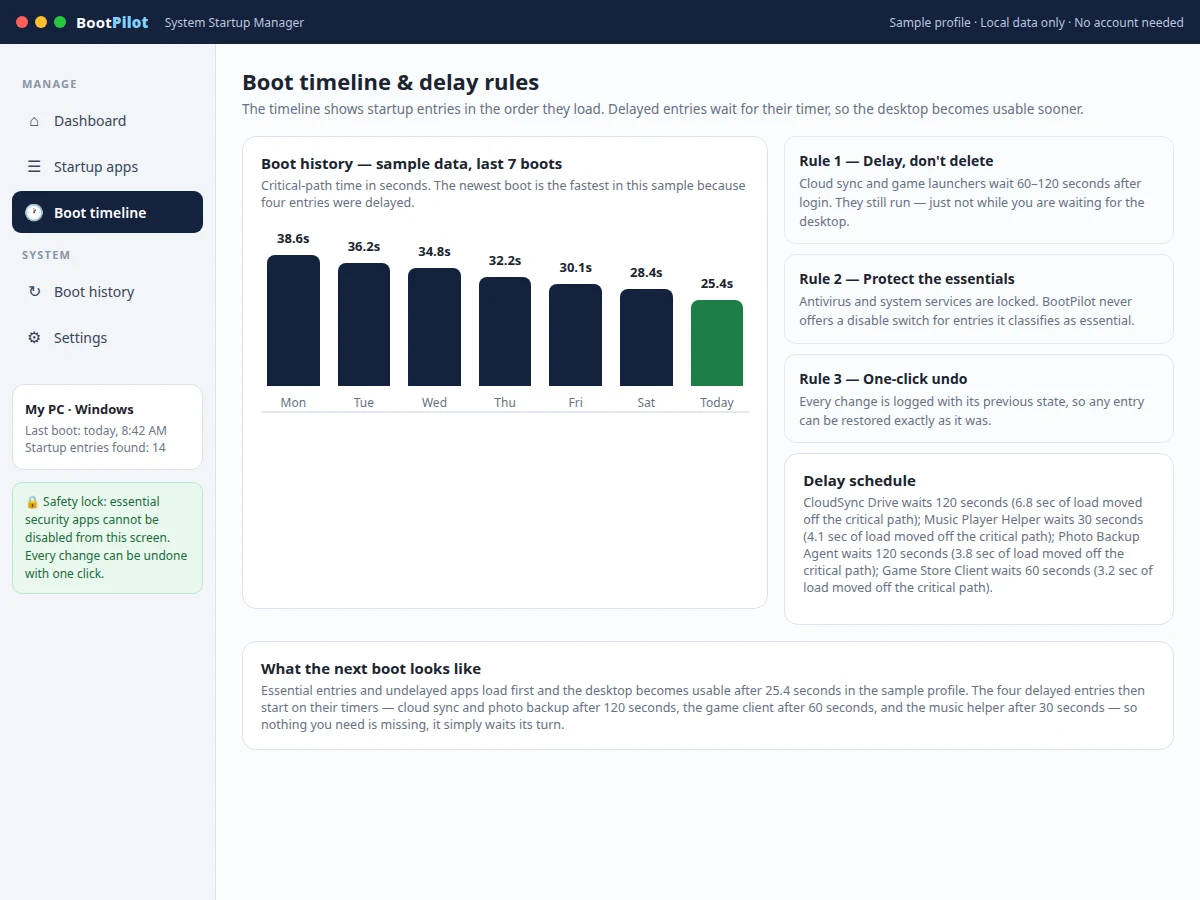
- On the next boot the timeline and history charts record the new critical-path total, so the effect of the change is verified in measured seconds rather than claimed.
Tech stack:
- Electron desktop shell
- Node.js · system startup APIs
- HTML · CSS · JavaScript interface
- SQLite local store
- Windows Registry Run keys
- JSON export format
- Canvas timeline charts
- Git version control
| Parameter | Value |
|---|---|
| Application type | Desktop app for Windows 10 and Windows 11 |
| Startup sources scanned | 3 sources: Registry Run keys · Startup folders · logon scheduled tasks |
| Demo sample entries | 14 entries (demo sample count) |
| Demo sample total cost | 43.3 seconds (demo sample total) |
| Demo sample critical path | 25.4 seconds (demo sample, after delays applied) |
| Demo sample delayed load | 17.9 seconds (demo sample, moved off the critical path) |
| Delay options | 30 seconds · 60 seconds · 120 seconds (timer options) |
| Impact bands | High · Medium · Low (design-target classification) |
| Local storage | SQLite database file, approximately 1 MB (expected size) |
| Export format | JSON report file (single-file export) |
| History view | 7 boots (demo sample history length) |
| Undo | One-click restore to the recorded previous state |
Project features
System Startup Manager gives a user four capabilities that matter most on a slow computer. First, a ranked startup inventory lists every auto-start entry with its boot-time cost and publisher, so the real culprits are visible instead of guessed. Second, delay controls move a non-essential entry off the critical boot path by 30 seconds, 60 seconds or 120 seconds, so it still runs but no longer blocks login. Third, a boot timeline and history chart shows how the critical-path total changes after each change, so every decision is judged by measured seconds. Fourth, a safety lock protects essential security software and a one-click undo restores any entry to its previous state, so experimenting with the queue carries no permanent risk. Together these four capabilities turn a slow, mysterious boot into a visible queue with a cost attached to every entry, so the user fixes what actually matters instead of guessing.
- [Ranked startup inventory] Every auto-start entry appears in one list with its publisher, its measured boot-time cost and a High, Medium or Low impact badge, ranked heaviest first so the entries worth fixing are at the top.
- [Boot-time analysis] The dashboard totals the queue into a critical-path figure and a delayed figure, so the user sees what actually blocks login separately from what merely starts later.
- [Delay controls] Any non-essential entry can be delayed by 30 seconds, 60 seconds or 120 seconds after login, moving its load off the critical path while the program itself keeps working normally.
- [Enable and disable switches] Each entry can be switched off so it no longer starts automatically, or switched back on, with the previous state recorded for every change.
- [Essential-entry safety lock] Entries the rules classify as essential, such as antivirus software, show a locked switch that cannot be turned off from this screen, so a careless click cannot break protection.
- [Boot timeline and history] A timeline chart breaks the boot into per-entry blocks and a history chart tracks the critical-path total across recent boots, so improvement after a change is visible at a glance.
- [One-click undo and export] Any change can be restored to its previous state with one click, and the full inventory with costs and delays can be exported as a JSON report for the project record.
Implemented in the delivered build: the ranked inventory, boot-time analysis, delay controls, enable and disable switches, the essential-entry safety lock, the boot timeline and history charts, and one-click undo with JSON export. Optional add-on on request: a scheduled weekly boot report delivered as a saved file. Future scope, not part of this build: automatic delay suggestions based on usage patterns, and support for operating systems beyond Windows.
What is included
- Complete desktop app with dashboard, startup list and boot timeline screens
- Ranked startup inventory with impact badges and delay controls
- Essential-entry safety lock and one-click undo with restore-point step
- Boot timeline and history charts with the demo sample profile
- JSON export of the full inventory, costs and delay settings
- Project report PDF (background, startup mechanisms, design decisions, testing notes)
- PPT presentation for final review
- Viva Q&A preparation document (startup locations, delay vs disable, safety rules, measurement limits)
Limitations & prerequisites
- The app manages startup entries only; it does not speed up the operating system itself, the disk, or the processor.
- Boot-time costs on a real machine vary with hardware and disk speed, so figures from one machine never transfer exactly to another.
- The demo sample figures (43.3 seconds total, 25.4 seconds critical path) describe the included sample profile only, not any real computer.
- Some entries are owned by drivers or system services and must stay enabled; the safety lock deliberately refuses those changes.
- Changing startup entries requires administrator permission, so the app cannot run its full feature set from a restricted account.
- This is a teaching build, not a commercial system utility, and it carries no certification for enterprise deployment.
Frequently Asked Questions
Will delaying an app stop it from working?
No. A delayed app still starts and works normally; it simply starts later, after the desktop is usable, instead of competing for processor time, disk reads and network access during the first seconds after login, when the machine is at its busiest. Delaying is the safe middle ground between doing nothing and disabling an entry: the program is still there when it is needed, it just no longer blocks the boot. If the delay ever proves inconvenient, the same entry can be set back to no delay with one change.
How does the app measure boot time?
It assigns each startup entry a cost in seconds and totals the whole queue into two figures: a critical-path figure for the load that runs before the desktop is usable, and a delayed figure for entries moved off that path. On a real machine the cost comes from the operating system's own startup measurement for that entry; in the included demo the figures come from a fixed sample profile of 14 entries, clearly labelled as sample data, so the dashboard can be demonstrated on any machine.
Can the app disable antivirus software by mistake?
No. Entries the rules classify as essential, such as antivirus software and system services, are shown with a locked switch that cannot be turned off from the app's screens at all, so protection stays on even when a user clicks carelessly. The lock exists precisely because a startup manager that could silently remove protection would be dangerous, and the design treats that failure as worse than leaving a heavy entry enabled. A user who genuinely needs to change an essential entry must do so through the operating system's own tools.
Which computers does the app run on?
The delivered build targets Windows 10 and Windows 11 desktops and laptops, where startup entries live in the Registry Run keys, the Startup folders and logon scheduled tasks. Changing those entries requires administrator permission on the test machine, and the core app needs no internet connection because all data stays in a local store. Support for other operating systems is listed as future scope and is not part of this build.
Is this project suitable for a final-year project?
Yes, for Computer Science and IT programs. It demonstrates operating-system concepts students actually meet in coursework — startup mechanisms, process scheduling pressure at login, and safe system configuration — combined with a complete desktop build: a real inventory scan, a ranked analysis view, delay controls, a safety rule set, and an undo mechanism that can be tested and shown working in a viva.
Components & software requirements
- Electron desktop shell
- Node.js · system startup APIs
- HTML · CSS · JavaScript interface
- SQLite local store
- Windows Registry Run keys
- JSON export format
- Canvas timeline charts
- Git version control
Delivery information
Built-to-order project. Delivery timeline is shared after order confirmation based on current queue.
Support terms
Complete documentation, setup guide, and viva preparation included. Support for setup and explanation provided.
Download free synopsis (PDF)
Enter your name and WhatsApp number — the synopsis PDF downloads immediately. We may send occasional project updates on WhatsApp; no spam.