
More project photos (3)
The problem
A desktop audio file converter is a desktop app that changes audio files from one format to another and lets the user correct the information stored inside each file. This converter queues several files at once, converts them with FFmpeg, and then writes edited titles, artists, albums and cover art into the converted outputs. People who record lectures, interviews and podcasts often end up with large WAV files that play on some devices but not others, and with files whose titles and artist fields are blank or wrong. Converting one file at a time, then fixing its tags in another tool, is slow and easy to get wrong when a folder needs the same treatment. This app brings the queue, the format presets and the metadata editor into one offline workflow, so a batch is set up once, checked file by file, and retried file by file when something fails.
How it works
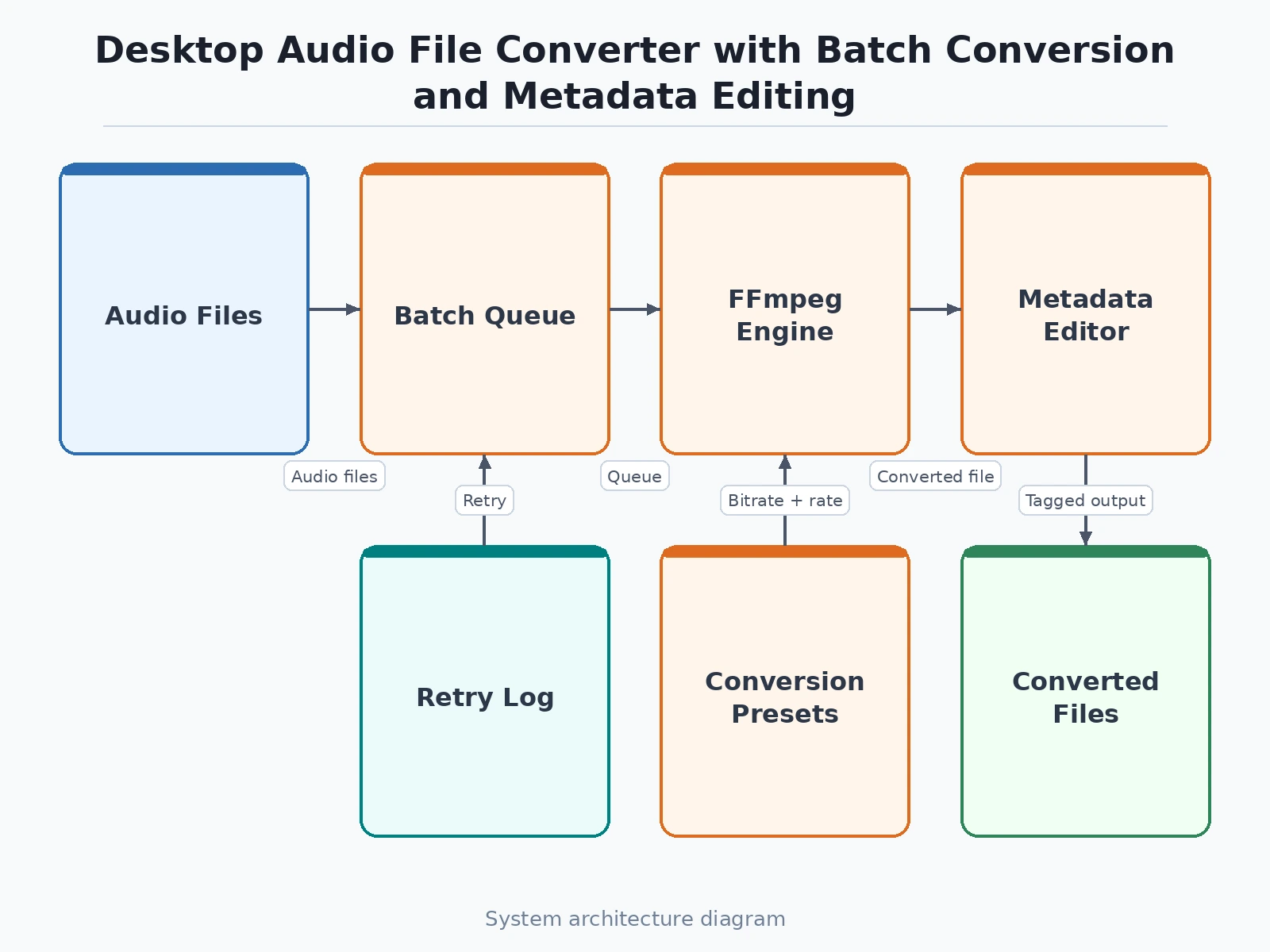
End to end, this desktop audio file converter works like this: the user adds audio files to a batch queue and sees each file's name, duration and input size in the list. The user then picks an output format and a preset, which fixes the bitrate and sample rate for the whole batch, and opens the metadata editor to correct titles, artists, albums and cover art for the files that need it. When the queue runs, FFmpeg converts one file at a time while the queue shows per-file progress, and each finished file is checked before its edited metadata is written into it. Files that fail are not hidden: they stay in the retry log with their error and their settings, so the user can fix the problem and retry only those files. The originals are never overwritten, and the converted files land in the chosen output folder.
- Add audio files to the batch queue and check each file's name, duration and input size before converting anything.
- Choose the output format and a preset, which fixes the bitrate and sample rate for the batch, or keep the source sample rate for a lossless FLAC preset.
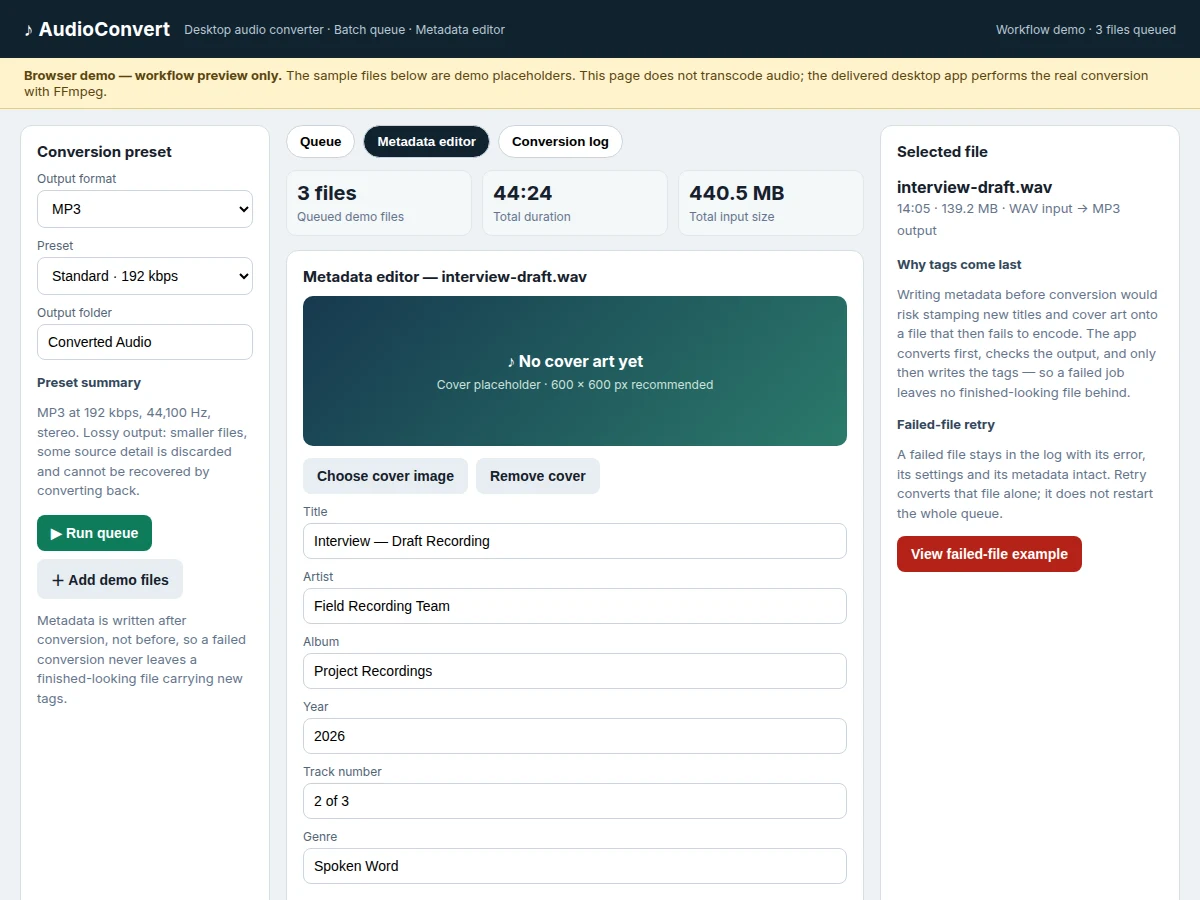
- Open the metadata editor for a file and correct its title, artist, album, year, track number and genre, and add or remove its cover image.
- Start the queue: FFmpeg converts one file at a time while the queue shows per-file progress and the output size of each finished file.
- After each successful conversion, the app writes the edited metadata and cover art into the converted file, leaving the original file untouched.
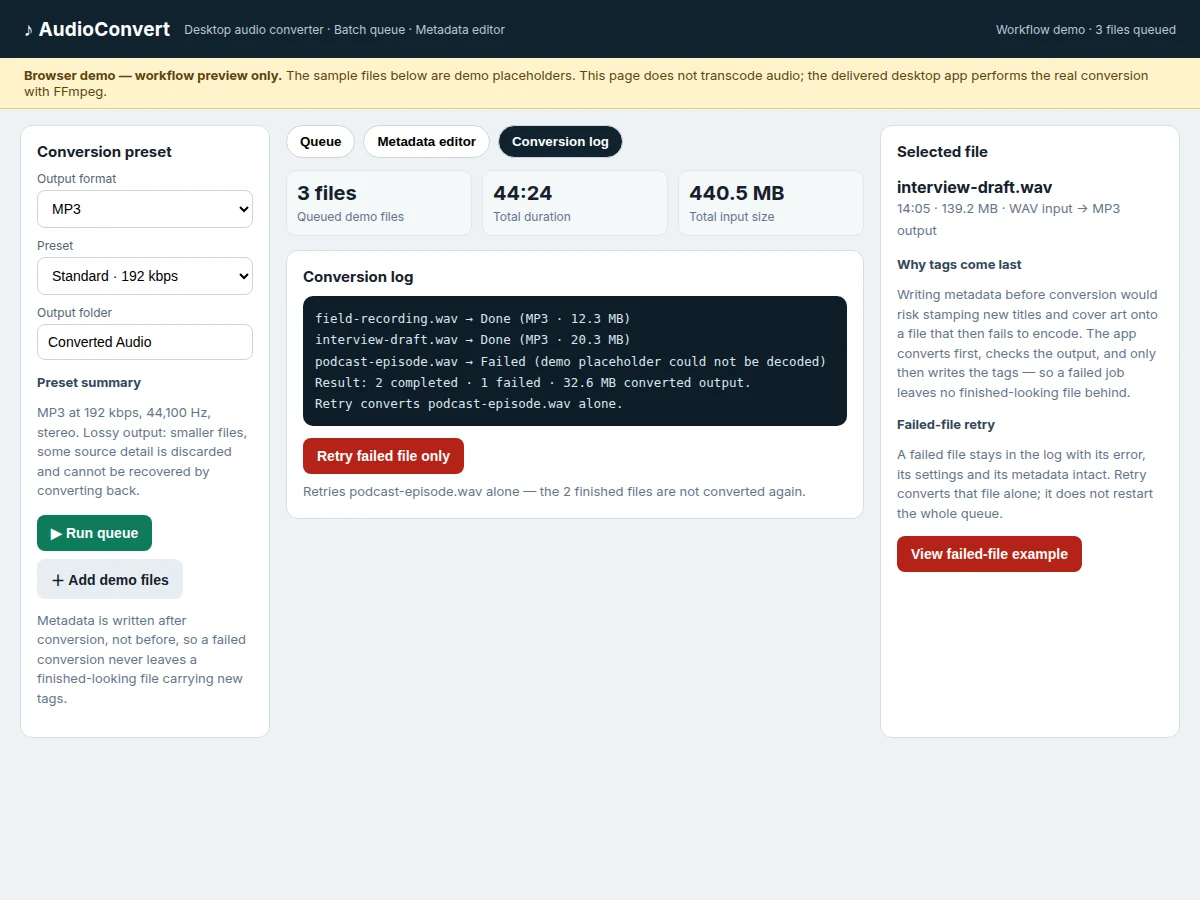
- Check the retry log for any failed file, read its error, and retry that file alone without restarting the files that already converted.
Tech stack:
- Electron · desktop app shell for Windows, macOS and Linux
- HTML · CSS · JavaScript front end inside the desktop shell
- FFmpeg · audio conversion engine
- libmp3lame · MP3 encoding through FFmpeg
- libvorbis · OGG Vorbis encoding through FFmpeg
- FLAC encoder · lossless FLAC encoding through FFmpeg
- Local file storage · converted outputs and queue state on the user's machine
- Git · version control for the app source
| Parameter | Value |
|---|---|
| Input formats | WAV · MP3 · FLAC · OGG · M4A (design target) |
| Output formats | MP3 · WAV · FLAC · OGG · M4A (design target) |
| MP3 encoder | libmp3lame via FFmpeg (design target) |
| OGG encoder | libvorbis via FFmpeg (design target) |
| FLAC encoder | FLAC encoder via FFmpeg (design target) |
| WAV output | Uncompressed PCM audio in a WAV container (design target) |
| Preset bitrates | 128 kbps · 192 kbps · 256 kbps · 320 kbps (design target) |
| Sample rates | 44,100 Hz · 48,000 Hz (design target) |
| Channels | 2 channels: stereo output in the base presets (design target) |
| Metadata fields | 6 fields: title · artist · album · year · track number · genre (design target) |
| Cover art | 1 cover image per file in the base editor (design target) |
| Demo queue sample | 3 files · 44:24 duration · 440.5 MB input size (demo sample data, not a claim about any real batch) |
| Demo output estimate | 64.0 MB estimated MP3 output at 192 kbps for the demo queue (demo sample data) |
| Platforms | Windows · macOS · Linux via the desktop shell (design target) |
| Not converted | DRM-protected files and streaming-service downloads (not in this build) |
Project features
The capabilities that carry this converter are its batch queue with per-file progress, its conversion presets with bitrate and sample rate, its metadata editor with cover-art handling, and its failed-file retry log. The batch queue is the foundation: because files are converted as a list rather than one at a time, a folder of recordings can be set up once and watched as each file finishes. Presets then remove the guesswork from format choices, since each preset fixes the output format, bitrate and sample rate before conversion starts. The metadata editor closes the workflow by letting the user correct titles, artists, albums and cover art for the converted files, and the retry log makes failures recoverable instead of forcing the whole queue to start again. Together, these four capabilities turn format conversion from a repetitive chore into a checked, repeatable batch job.
- [Batch queue with per-file progress] Several files are queued at once and each file shows its own progress, input size and output size, so the user can see exactly which files have finished and which are still converting. Implemented in the base app.
- [Conversion presets with bitrate and sample rate] Named presets fix the output format, bitrate and sample rate for a batch, including MP3 presets at common bitrates and a lossless FLAC preset that keeps the source sample rate. Implemented in the base app.
- [Metadata editor with cover-art handling] Titles, artists, albums, years, track numbers and genres are edited before conversion, and one cover image per file can be added or removed for the converted output. Implemented in the base app.
- [Failed-file retry log] A file that fails stays in the log with its error, settings and metadata intact, and retry converts that file alone without restarting the finished files. Implemented in the base app.
- [Metadata written after conversion] Tags and cover art are written only after a file converts successfully, so a failed conversion never leaves a finished-looking file carrying new tags. Implemented in the base app.
- [Original files left untouched] Conversion always writes new output files and never overwrites the source files, so the originals remain available if a preset or a tag needs to be changed. Implemented in the base app.
- [FFmpeg conversion engine] Conversion runs through FFmpeg, with MP3 encoding via libmp3lame, OGG encoding via libvorbis, FLAC encoding via the FLAC encoder, and WAV output as uncompressed PCM audio. Implemented in the base app.
What is included
- Working desktop app: batch queue with per-file progress, format presets with bitrate and sample rate, metadata editor with cover-art handling, failed-file retry log, and FFmpeg conversion
- Sample audio workflow with demo files showing a queued batch, a metadata edit and a retry-log entry
- User guide covering queue setup, preset choice, metadata editing, cover art and retrying failed files
- Project report PDF (background, conversion design, methodology, limitations)
- PPT presentation for final review
- Viva Q&A preparation document (lossy versus lossless conversion, preset choices, metadata timing, FFmpeg encoder choices, limits of the build)
Limitations & prerequisites
- Lossy conversion discards audio detail: converting MP3 to MP3, or any lossy format to another lossy format, cannot restore detail that was already removed, and converting back to a lossless format does not recover it.
- Conversion quality depends on the source file: converting a low-bitrate source to a 320 kbps MP3 preset does not improve its sound, because the extra bitrate carries no new audio detail.
- DRM-protected files are not converted, and the app does not download audio from streaming services; it converts only audio files the user already owns on their machine.
- The base build converts audio only: it does not trim, split, merge, normalise or remove noise from recordings, and it does not edit the audio content itself.
- Metadata support varies by format: some formats carry fewer fields than others, so a tag that is stored in one format may not survive conversion to a format with narrower metadata support.
- Cover art is limited to 1 image per file in the base editor, and very large cover images increase the converted file's size without improving the audio.
- Conversion runs file by file, so a long queue takes proportionally longer than a short one, and total time also depends on the machine, the source format and the chosen preset.
Frequently Asked Questions
Is this project suitable for a final-year project?
Yes, for Computer Science and IT programmes, because it combines desktop application development, batch queue design, FFmpeg-based media conversion and metadata handling in one demonstrable workflow. The viva demonstration is concrete: queue files, choose a preset, edit metadata, run the batch and retry a failed file live.
Which audio formats does the converter handle?
It handles WAV, MP3, FLAC, OGG and M4A as inputs and outputs in the base build, with MP3 encoded via libmp3lame, OGG via libvorbis and FLAC via the FLAC encoder in FFmpeg. WAV output is uncompressed PCM audio, which keeps full quality but produces larger files than compressed formats.
Does converting to a higher bitrate improve sound quality?
No. A higher bitrate only preserves more of what is already in the source, so a low-quality source stays low-quality no matter how high the output preset is set. The honest use of a high preset is to avoid losing further detail when converting from a good-quality source.
What happens when one file in a batch fails?
Only that file stops, and it stays in the retry log with its error, preset and metadata intact, while the other files keep converting. Retry converts the failed file alone, so a single bad file never forces the whole queue to start again from the beginning.
Can it download songs or convert protected files?
No. The app converts only audio files already on the user's machine and does not download from streaming services or remove DRM protection. Protected files are outside the scope of the build and will fail conversion rather than being unlocked.
Can presets be changed or added?
Yes, within the base design: a preset is a saved combination of output format, bitrate and sample rate, so new combinations can be added for a different quality-versus-size trade-off. Adding a wholly new codec, however, is a code change that depends on FFmpeg support for that codec.
Components & software requirements
- Electron · desktop app shell for Windows, macOS and Linux
- HTML · CSS · JavaScript front end inside the desktop shell
- FFmpeg · audio conversion engine
- libmp3lame · MP3 encoding through FFmpeg
- libvorbis · OGG Vorbis encoding through FFmpeg
- FLAC encoder · lossless FLAC encoding through FFmpeg
- Local file storage · converted outputs and queue state on the user's machine
- Git · version control for the app source
Delivery information
Built-to-order project. Delivery timeline is shared after order confirmation based on current queue.
Support terms
Complete documentation, setup guide, and viva preparation included. Support for setup and explanation provided.
Download free synopsis (PDF)
Enter your name and WhatsApp number — the synopsis PDF downloads immediately. We may send occasional project updates on WhatsApp; no spam.