
More project photos (3)

The problem
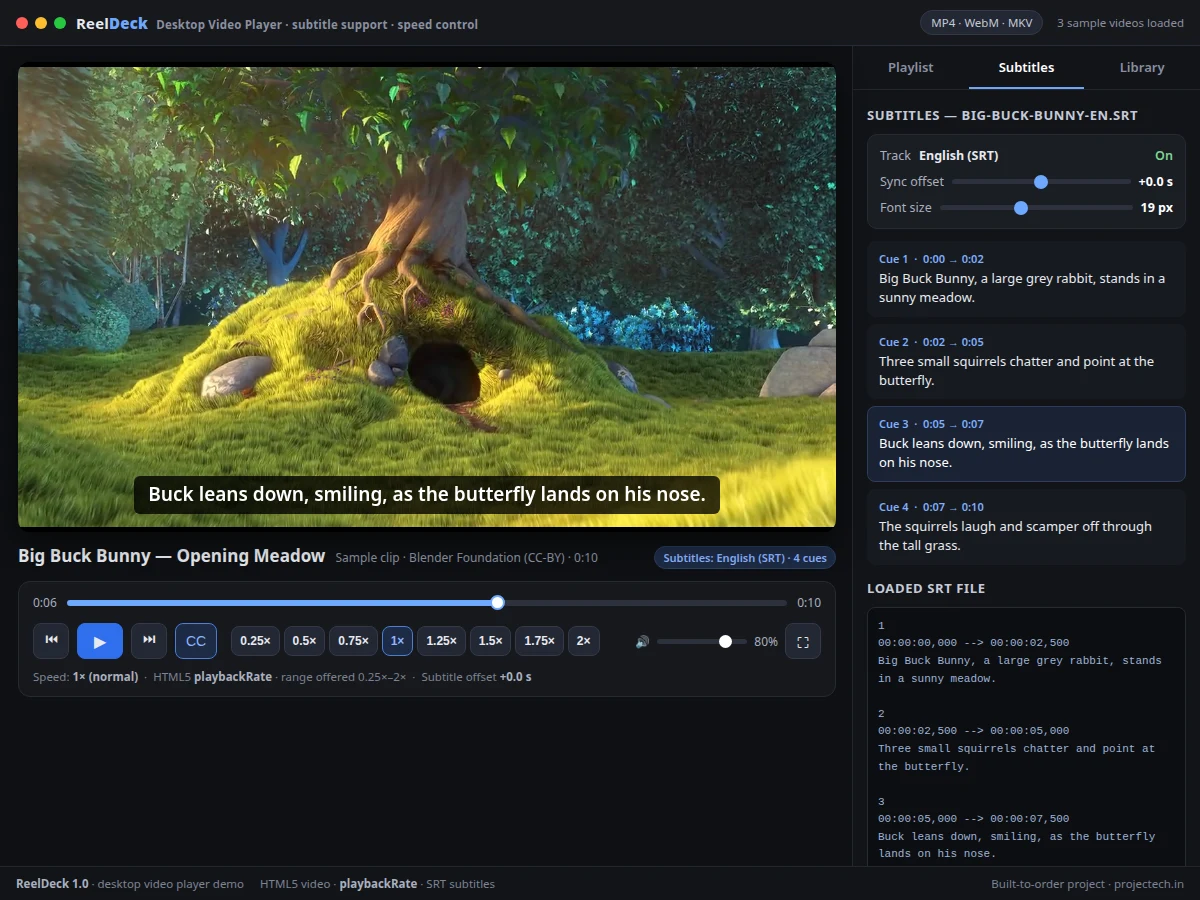
Desktop players ship with every operating system, yet the bundled player rarely does what students need for a lecture recording or a subtitled film. Speed is usually buried in a menu, subtitles load only on an exact file-name match, and a mistimed track cannot be nudged into sync without a separate editor. A student revising a 60-minute lecture at 1.5x, or watching a film with a separately downloaded SRT file, juggles several tools for one simple job. This project builds one desktop video player for that workflow: it plays local video files, loads SRT and WebVTT tracks on demand, shows each cue in sync, shifts subtitles to correct timing drift, and changes speed from 0.25x to 2x without changing pitch. A playlist and recent-files list keep lecture series organised, so the player works like a study tool. A demo-build subtitle-sync check at three probe times (2.6 s, 6.0 s, 8.5 s) showed the expected cue at each one.
Opens a local video file from the playlist or file picker.
Follow the working sequence
How it works
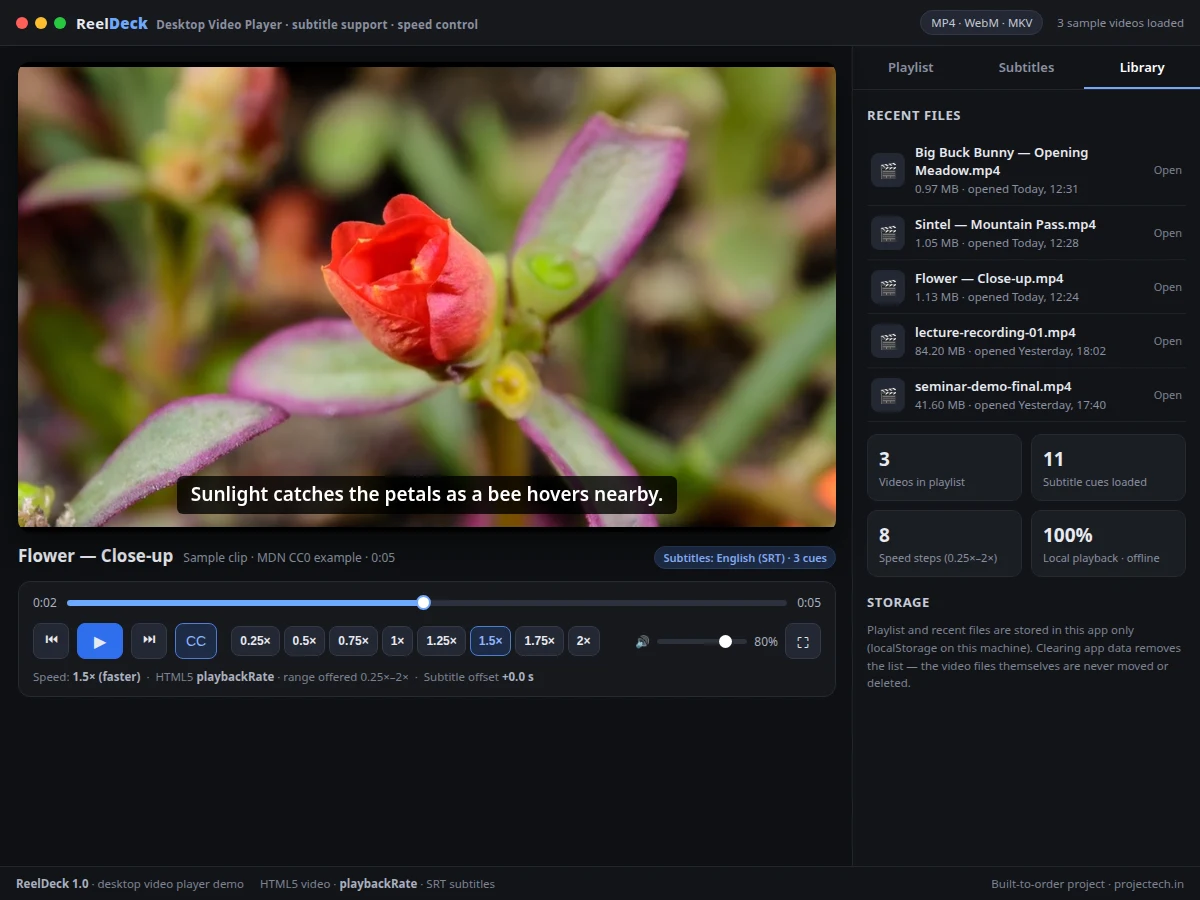
ReelDeck starts when the viewer opens a video file from the playlist or the file picker, and the player takes over in a short chain: the file is handed to the HTML5 video element, the matching subtitle track is parsed into timed cues, the first frame appears, and the transport controls become live. While the video plays, the player checks the current position on every time update and shows the cue whose start and end times bracket that position, hiding it the moment the position passes the cue end. Changing speed writes a new value to the video element's playbackRate property, which multiplies the normal rate of 1.0, while the browser preserves audio pitch so speech stays natural at 1.25x or 1.5x. The sync-offset slider adds its value to the current position before the cue lookup, shifting every subtitle earlier or later without editing the file, and every opened file is recorded in the recent-files list.
- The viewer opens a local video file (MP4, WebM or MKV) from the file picker or clicks an entry in the playlist; the Electron shell passes the file to the HTML5 video element.
- The player looks for a subtitle file with the same name, or a subtitle file the viewer loads manually, and parses it into numbered cues, each with a start time, an end time and text in the SRT format (HH:MM:SS,mmm --> HH:MM:SS,mmm).
- The video element loads the file metadata (duration and dimensions) and shows the first frame; the transport controls, seek bar and speed buttons become active.
- During playback, the player compares the current playback position with the subtitle cues on every time update and displays the matching cue as an overlay on the video, hiding it when the position passes the cue end.
- Changing speed sets the video element's playbackRate property to one of 8 steps from 0.25x to 2x; the browser keeps audio pitch natural, and the change applies immediately without restarting the video.
- Moving the sync-offset slider shifts the position used for the cue lookup by up to 2.0 s in either direction, so a subtitle track that runs early or late can be corrected without editing the SRT file.
- When a video finishes, the player advances to the next playlist entry automatically, and the file just played is added to the recent-files list with its size and open time.
Tech stack:
- Electron (desktop shell)
- HTML5 video element
- JavaScript (player logic)
- Node.js (local file access)
- CSS (player interface)
- SRT subtitle parser
- WebVTT subtitle support
- localStorage (playlist · recent files)
| Parameter | Value |
|---|---|
| Platform | Windows, macOS and Linux desktop builds (Electron, design target) |
| Video formats | MP4, WebM and MKV (design target) |
| Playback speed | 8 steps from 0.25x to 2x (implemented in demo) |
| Subtitle formats | SRT and WebVTT (design target) |
| Subtitle sync offset | -2.0 s to +2.0 s in 0.1 s steps (implemented in demo) |
| Playlist capacity | 100 videos (design target) |
| Recent-files list | 20 entries stored locally (design target) |
| Seek-bar resolution | 0.1 s steps (implemented in demo) |
| Demo sample videos | 3 clips totalling 25.06 s (measured: 10.00 s + 10.00 s + 5.06 s) |
| Packaged app size | Approximately 60-90 MB (expected, Electron baseline) |
Project features
ReelDeck is organised around four capabilities that matter every time a video is opened: reliable local playback, subtitle handling that stays in sync, speed control that keeps speech intelligible, and a library that remembers what was watched. The player is built on the HTML5 video element inside an Electron desktop shell, so the same playback engine runs on Windows, macOS and Linux without a browser tab or an internet connection. Subtitles are parsed from plain SRT and WebVTT files and rendered as an overlay on the video, with a sync-offset slider that shifts every cue by up to 2.0 seconds in either direction. Playback speed uses the browser playbackRate property across eight steps from 0.25x to 2x, with pitch preserved so voices stay natural. Around those four capabilities sit the everyday controls a desktop player needs: a seek bar, volume, fullscreen, a playlist, and a recent-files list stored locally on the machine.
- [Local video playback] Opens MP4, WebM and MKV files stored on the student's own machine and plays them through the HTML5 video element, with no upload, no account and no internet connection needed.
- [SRT and WebVTT subtitle loading] Loads subtitle tracks from SRT and WebVTT files, either automatically when the subtitle file shares the video's name or manually from the Subtitles tab, and renders the active cue as an overlay on the video.
- [Subtitle sync offset] A slider shifts every subtitle cue from -2.0 s to +2.0 s in 0.1 s steps, so a track that runs consistently early or late can be corrected while the video keeps playing, without editing the subtitle file.
- [Playback speed control 0.25x-2x] Eight speed steps (0.25x, 0.5x, 0.75x, 1x, 1.25x, 1.5x, 1.75x, 2x) set through the video element's playbackRate property, with audio pitch preserved so speech stays natural at faster speeds.
- [Playlist] Holds up to 100 videos (design target) in one ordered list; clicking an entry loads its video and subtitle track, and playback advances to the next entry automatically when a video ends.
- [Recent-files list] Records the last 20 opened files (design target) with file size and open time, stored locally on the machine, so a lecture or film can be reopened in one click.
- [Seek bar, volume and fullscreen] A 0.1 s resolution seek bar with elapsed and total time, a volume slider, and a fullscreen toggle, all working from the keyboard-friendly transport bar under the video.
What is included
- Complete Electron desktop app source code
- Working HTML5 player demo with 3 sample videos and 11 timed subtitle cues
- SRT and WebVTT sample subtitle files for the demo videos
- Playlist and recent-files implementation with local storage
- Setup and build instructions for Windows, macOS and Linux
- Project report PDF (background, HTML5 video and subtitle-format theory, methodology, results)
- PPT presentation for final review
- Viva Q&A preparation document (playbackRate, SRT parsing, Electron architecture)
Limitations & prerequisites
- Playback of a format depends on the codecs bundled with the Electron build; some MKV files with uncommon codecs may play video without audio, and codec support is a stated dependency, not a guarantee.
- Subtitle styling is limited to the overlay design in the app; SRT files carry no font, colour or positioning information, so per-cue styling from the file is not supported.
- Speeds above 2x are not offered because speech becomes hard to follow and browsers mute audio outside their practical playback range; the 0.25x-2x range is a deliberate design limit.
- The player is a local-file application; it does not stream from video websites, and DRM-protected files cannot be played.
- Resume-from-last-position is not part of the base build; the recent-files list records what was opened but does not store a per-video timestamp (listed as future scope).
- Very large 4K files may stutter on low-end laptops because decoding is done by the bundled Chromium build; this depends on the machine, not the player code.
Frequently Asked Questions
What video and subtitle formats does it play?
The player is designed for MP4, WebM and MKV video files, and for SRT and WebVTT subtitle files. MP4 with H.264 video is the most reliable combination because it is supported by the Chromium engine inside Electron on all three desktop platforms, while MKV support depends on the codecs inside the container. A subtitle file with the same name as the video is picked up automatically, and any SRT or WebVTT file can also be loaded manually from the Subtitles tab.
How does the subtitle sync offset work?
The sync-offset slider adds a fixed shift, from -2.0 seconds to +2.0 seconds in 0.1-second steps, to the playback position before the player looks up which subtitle cue to show. A positive offset delays the subtitles and a negative offset brings them earlier, so a track that is consistently out of step can be corrected while the video keeps playing. The shift applies to every cue at once and never edits the subtitle file, so the original SRT or WebVTT file stays untouched.
Does changing the speed change the pitch of voices?
No, changing the speed does not change the pitch of voices, because the player sets the HTML5 video element's playbackRate property and the browser preserves audio pitch by default, so voices sound faster but not higher-pitched at 1.25x or 1.5x. Speech stays intelligible across the offered 0.25x to 2x range, which is why the range stops at 2x. At 0.5x a lecture can be followed word by word, and at 1.5x a 60-minute lecture finishes in about 40 minutes.
Does the player need the internet?
No, the player does not need the internet, because it is a desktop application that opens files stored on the student's own machine, so playback, subtitles, speed control and the recent-files list all work fully offline with no connection at all. Nothing is uploaded and no account is needed. The only time a connection matters is when downloading the app itself or a new subtitle file.
Can I use it for lecture recordings and study?
Yes. Lecture recordings are the main use case the player is designed around: the speed control shortens revision, the seek bar and playlist keep a lecture series in order, and the subtitle track keeps spoken content readable when the audio is quiet or accented. A student can load a transcript exported as SRT and follow it on screen, then nudge the sync offset if the transcript drifts from the audio.
Is this project suitable for a final-year project?
Yes, for Computer Science and Information Technology programmes. It demonstrates desktop application development with Electron, the HTML5 media APIs, file parsing for the SRT format, and user-interface design, all in a project a student can demonstrate live in a viva. The working demo, the subtitle-sync check and the speed-control implementation give the student concrete behaviour to explain, not just slides.
Components & software requirements
- Electron (desktop shell)
- HTML5 video element
- JavaScript (player logic)
- Node.js (local file access)
- CSS (player interface)
- SRT subtitle parser
- WebVTT subtitle support
- localStorage (playlist · recent files)
Delivery information
Built-to-order project. Delivery timeline is shared after order confirmation based on current queue.
Support terms
Complete documentation, setup guide, and viva preparation included. Support for setup and explanation provided.
Download free synopsis (PDF)
Enter your name and WhatsApp number — the synopsis PDF downloads immediately. We may send occasional project updates on WhatsApp; no spam.