
More project photos (2)
The problem
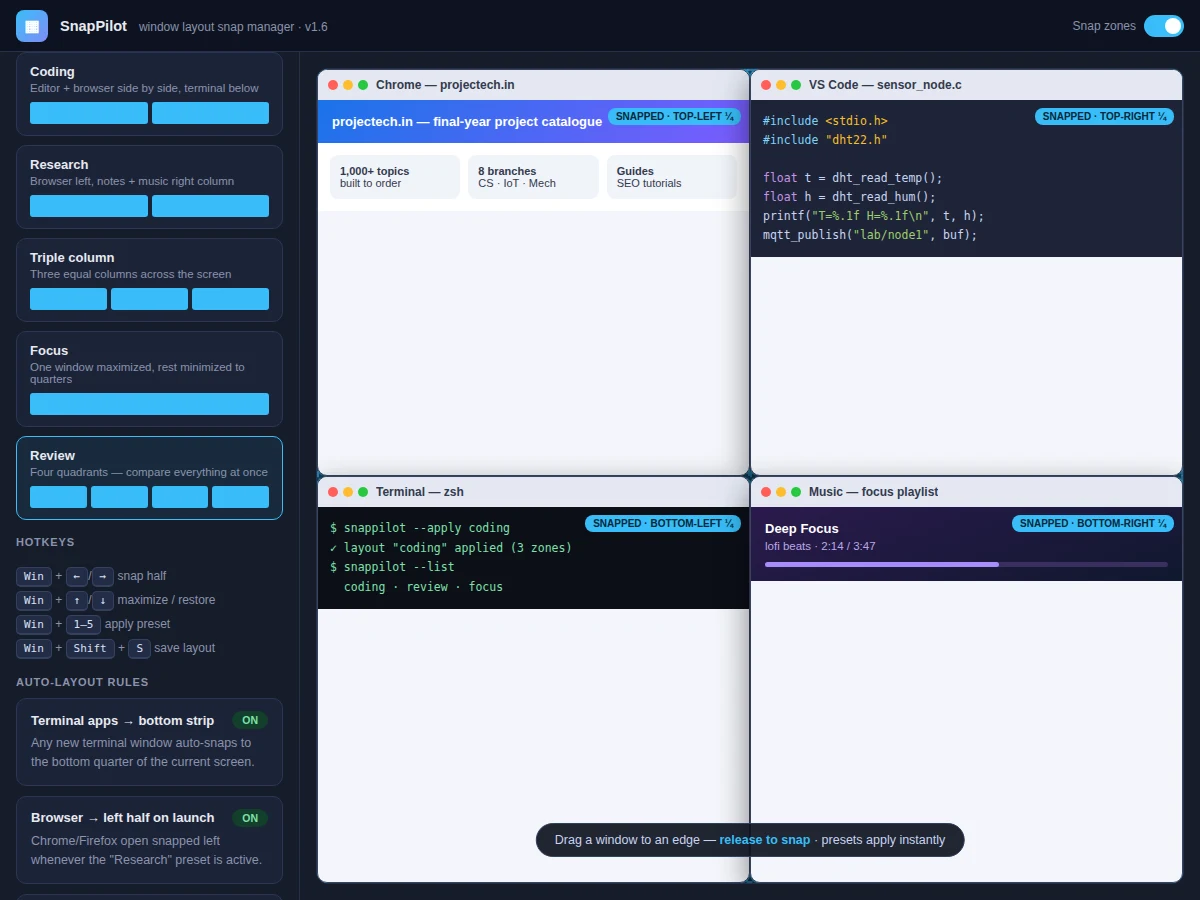
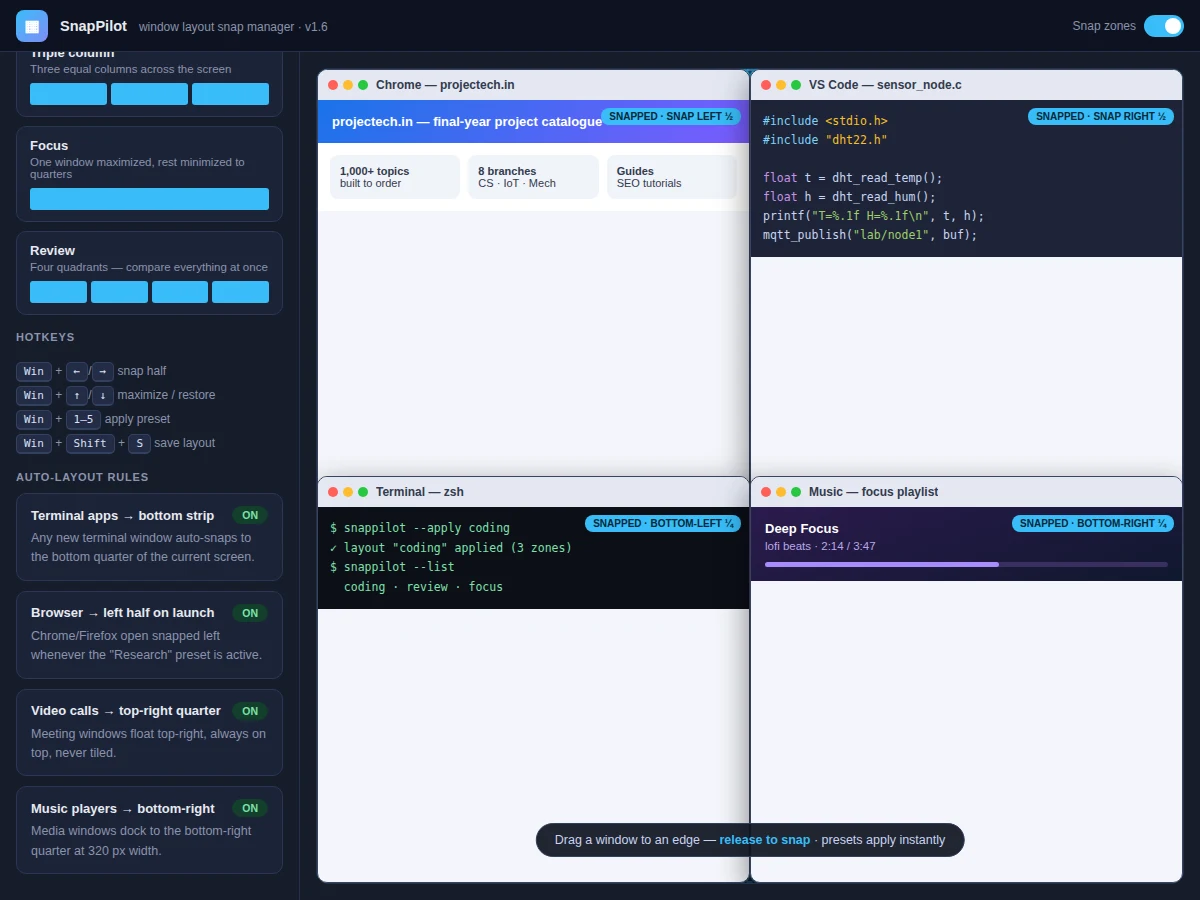
Multitasking on a single screen usually means alt-tabbing between overlapping windows or manually resizing each one into place — a small but constant tax on focus, especially during coding, research or viva preparation. Operating systems ship basic snapping, but it is limited: no named multi-window presets, no per-application rules, no saved layouts for different tasks. This utility builds the missing layer. Dragging a window near an edge, corner or screen third lights up a snap zone; releasing drops the window into it with a smooth animation. Named presets (Coding, Research, Triple-column, Focus, Review) arrange every open window at once, auto-layout rules pin application types to zones automatically, and hotkeys drive everything without the mouse. Layouts can be saved and restored per task, so "exam prep" and "project demo" are each one keystroke away. The demo replicates the full experience in the browser: draggable windows, live zone highlighting, animated snapping and the preset/rule panels.
How it works
- The utility hooks window-drag events from the OS window manager (or simulates the desktop in the demo build).
- While dragging, the cursor position is tested against the snap-zone map — halves, thirds, quadrants and maximize strip.
- The matching zone highlights; on release, the window's geometry is animated to the zone rectangle and tagged as snapped.
- Presets are stored as zone assignments per window role; applying one iterates over open windows and snaps each to its zone.
- Auto-layout rules match new windows by application name or window class and snap them per the rule table.
- Saved layouts serialize window identifiers and zone assignments to disk and restore them on demand.
- Hotkeys are registered globally so snapping works regardless of which application has focus.
Tech stack:
- Python 3 (desktop build)
- OS window-manager APIs (Win32 / X11)
- Global hotkey registration
- JSON layout serialization
- Single-file web demo (HTML/CSS/JS)
- Git
| Parameter | Value |
|---|---|
| Snap zones | Halves, thirds, quadrants, maximize (design target) |
| Presets | 5 built-in + user-saved (design target) |
| Hotkeys | Win+arrows, Win+1…5, Win+Shift+S (design target) |
| Rules engine | App-name/class matching (design target) |
| Layout storage | JSON per named layout (design target) |
| Platforms | Windows + Linux (X11) in shipped build (expected) |
| Demo | Single-file web app simulating the desktop (design target) |
Project features
- [Drag-to-snap zones] Dragging a window near edges, corners or thirds highlights the target zone; release snaps the window into it with animation.
- [One-click layout presets] Coding, Research, Triple-column, Focus and Review presets arrange all open windows instantly — also bound to Win+1…5.
- [Auto-layout rules] Per-application rules (terminals to the bottom strip, browsers left, meeting windows top-right floating) apply automatically on launch.
- [Hotkey control] Full keyboard operation: snap halves/quarters, maximize, apply presets and save layouts without touching the mouse.
- [Saved layouts] Name and store window arrangements per task and restore them later, across sessions.
- [Live zone overlay] A toggleable overlay shows every snap zone and its label so the layout language is always discoverable.
- [Snap animation] Windows glide to their snapped position instead of jumping, with a brief "snapped" badge confirming the action.
- [Multi-window awareness] Presets reason about all open windows at once rather than one window at a time.
What is included
- Complete utility source code (Python)
- Design document (zone map, rule engine, hotkey table, layout format)
- Working web demo with draggable windows and live snapping
- Project report PDF (background, window-manager concepts, methodology)
- PPT presentation for final review
- Viva Q&A preparation document (window managers, event hooks, geometry, UX)
Limitations & prerequisites
- The shipped desktop build targets Windows and X11 Linux; Wayland and macOS need platform-specific code listed as future scope.
- The browser demo simulates the desktop — real OS window hooks ship in the Python application.
- Snapping requires the OS to permit window repositioning; some fullscreen-exclusive apps opt out.
- Multi-monitor zone mapping is supported in design but tested on single-monitor setups in the base build.
Frequently Asked Questions
How is this different from the snapping built into Windows?
Built-in snapping handles one window at a time with fixed halves. This adds named multi-window presets, per-app auto-layout rules, saved task layouts and full hotkey control.
Do I need the mouse?
No — every action has a hotkey: snap to halves/quarters, maximize, apply any preset, and save the current layout.
What are auto-layout rules?
Rules like "any new terminal opens in the bottom strip" or "browsers snap left when the Research preset is active" — your desktop organizes itself as apps launch.
Can I save different layouts for different work?
Yes. Save "coding", "viva prep" or "demo" as named layouts and restore each with one keystroke.
Does it work on multiple monitors?
The zone map is per-monitor in the design; the base build is validated on single-monitor setups, with multi-monitor listed as an extension.
Is this project suitable for a final-year project?
Yes — for Computer Science and IT programs. It demonstrates OS-level programming, event handling, geometry, UX design and a genuinely useful daily tool. Suitable for B.E./B.Tech final-year projects in Computer Science and IT.
Components & software requirements
- Python 3 (desktop build)
- OS window-manager APIs (Win32 / X11)
- Global hotkey registration
- JSON layout serialization
- Single-file web demo (HTML/CSS/JS)
- Git
Delivery information
Built-to-order project. Delivery timeline is shared after order confirmation based on current queue.
Support terms
Complete documentation, setup guide, and viva preparation included. Support for setup and explanation provided.